An editor, not a text box.
Writing is one half of it. The other half is everything around the words: a preview that keeps up, the page's own CSS beside it, a way to collapse what you are not working on, and a version of every save.
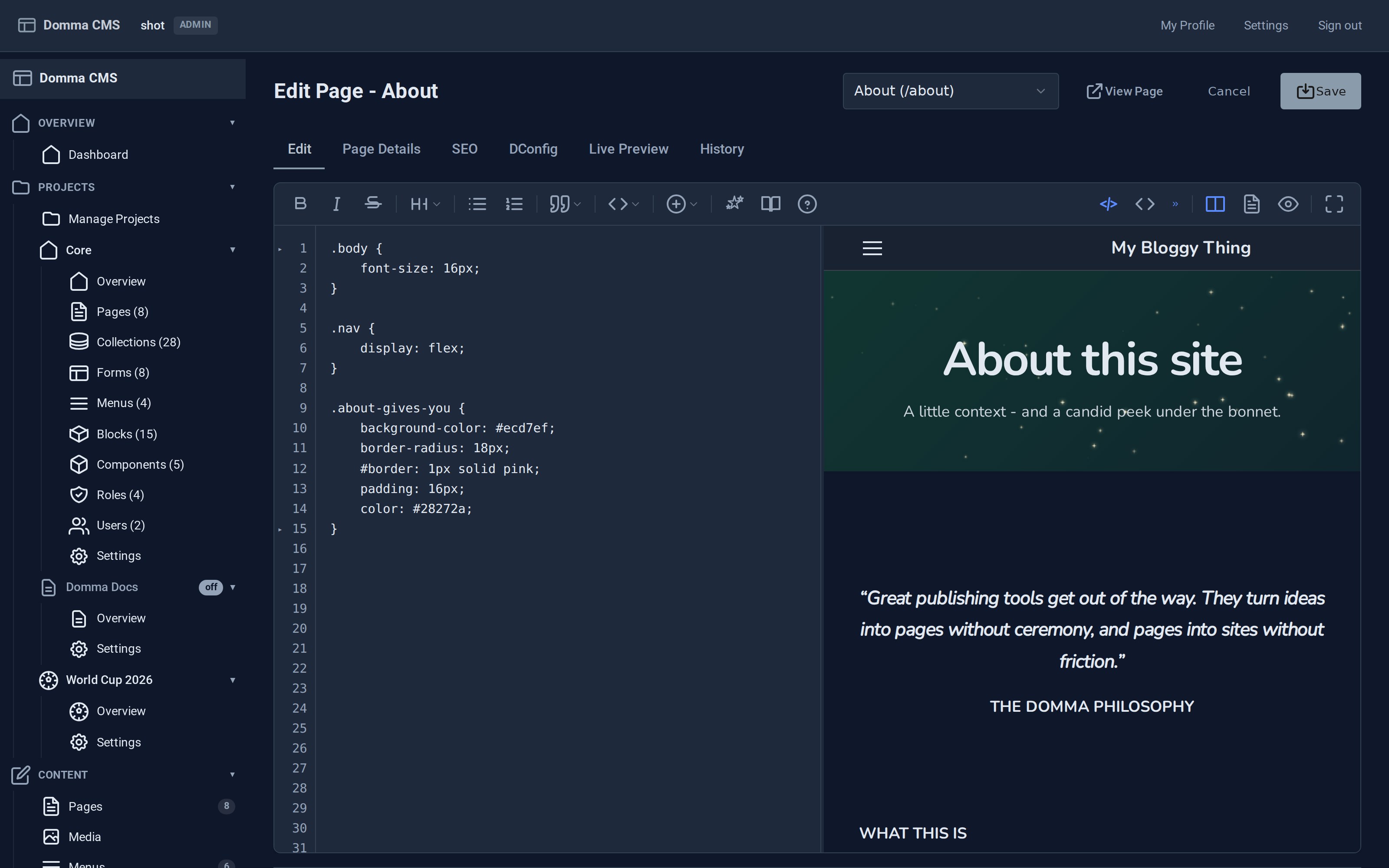
The same pane, switched to the page's own CSS. The preview never stops rendering.
Markdown on the left. The page on the right.
The preview is the real renderer in the real theme, not an approximation, and live components run in it. Drag the divider to give either side more room.
The left pane has a second job: one button swaps it between the markdown and the page's own custom CSS. Both save together, in one action, with one toast. Page-specific styling stops being a separate trip to a separate screen.
Fold what you are not working on.
A hero or a grid can run to thirty lines of attributes. Folding collapses each one to a single summary line, so the shape of the page stays visible. Unfold to edit, and the original comes back untouched on save. One button folds or unfolds the lot.
There is a Format Markdown button beside it for when a page has been edited by several hands and the indentation has drifted.
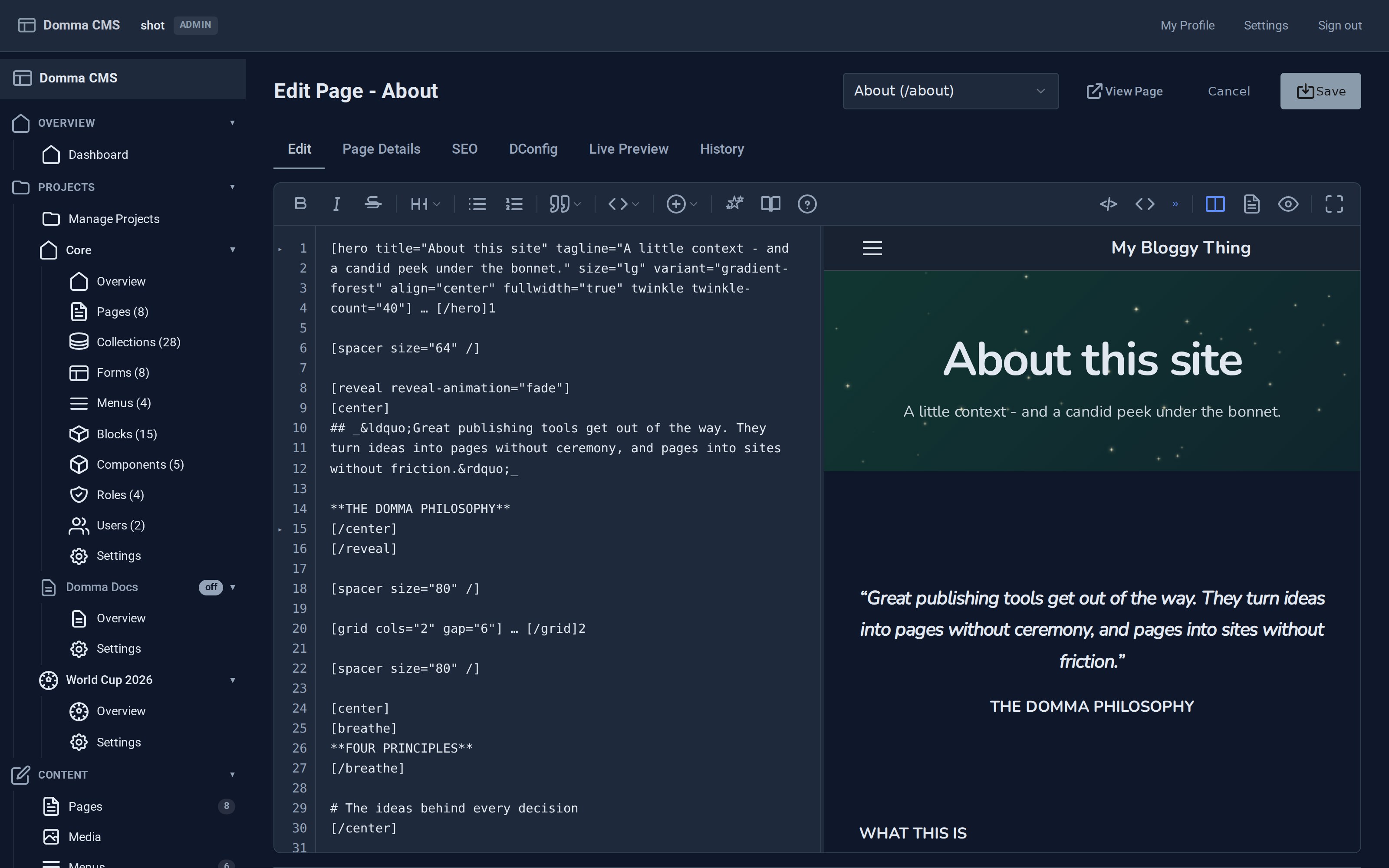
Folded, a thirty-line hero is one line. The page keeps its shape while you work further down.
Hands stay on the keys.
Every common edit is bound, including the line operations people miss most.
A reference beside the text.
Not a docs site in another tab. A panel with tabs for Basics, Layout, Components, Data and Advanced: the Markdown syntax table, every shortcut, and the tips for things that are easy to get wrong.
It ships with the version you are running, so it cannot drift from the product the way an external manual does.
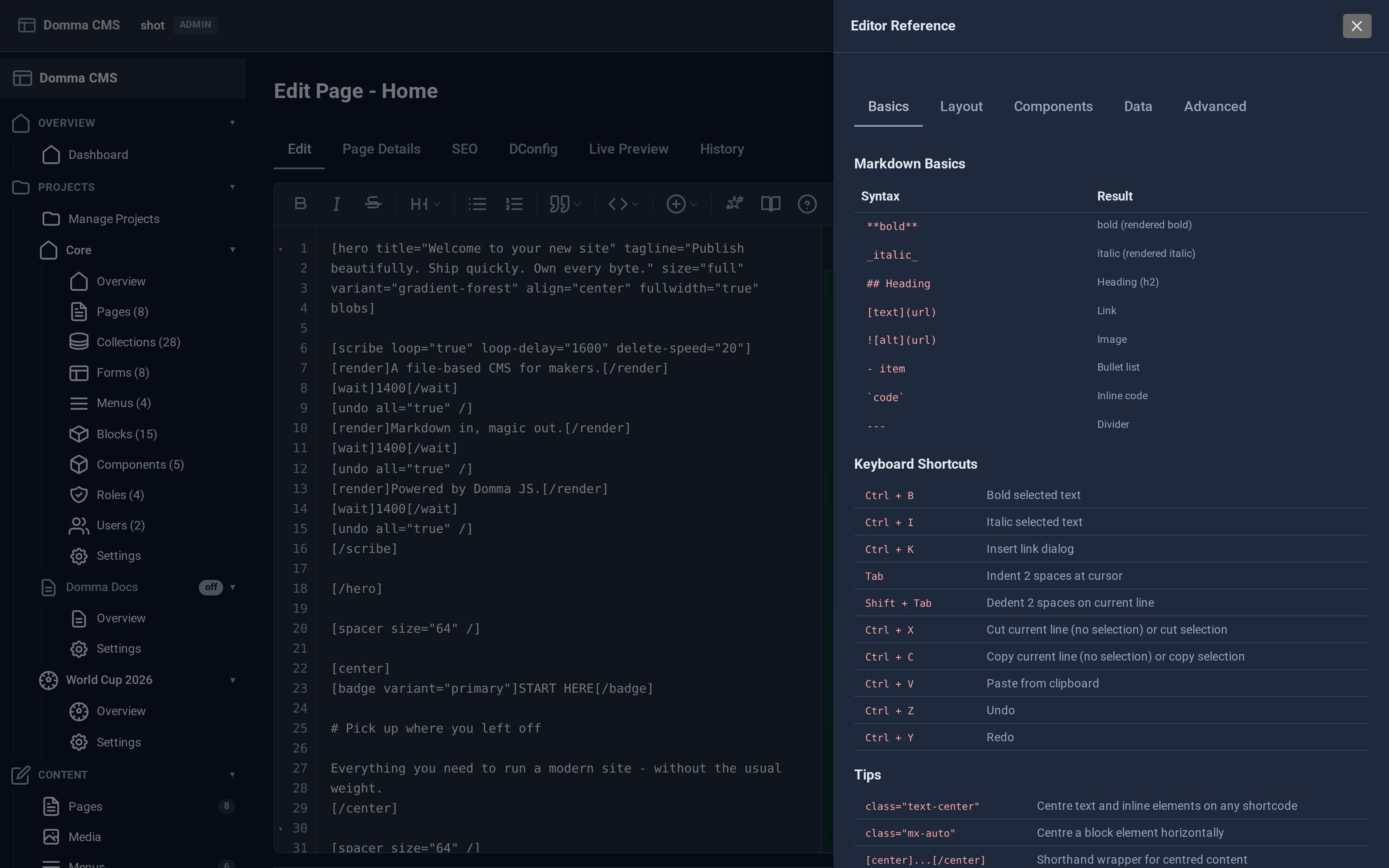
Syntax, every shortcut and the tips, without leaving what you are writing.
Nothing you write is ever only in one place.
Saves are versioned automatically, with the date and who made them. Compare any version against the current page, restore one in a click, or name a version yourself when a draft is worth coming back to.
Preview, share, publish.
The Live Preview tab renders the whole page from unsaved changes. A draft still returns 404 to the public while an editor sees it on its real URL with a banner. And Share link mints a signed URL that shows an unpublished page to a client with no login, which you can withdraw again afterwards.
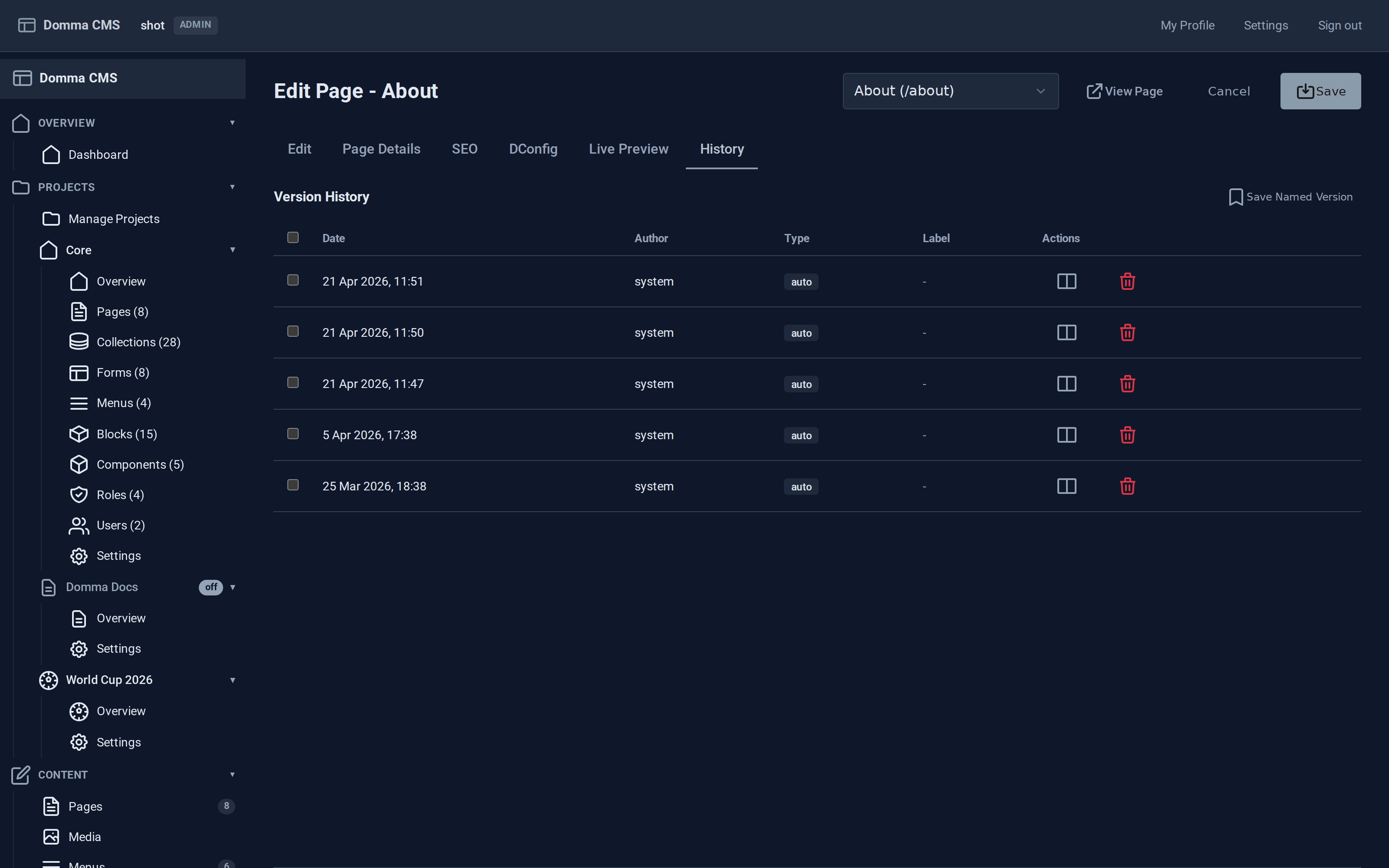
Every save, dated and attributed, with compare and restore beside it.