You will do
Get ACME's service agreement for Harbour Café signed - the customer first, then ACME - and share a price list behind a password.
You need
- Docs and Docs Pro on your site
- Your site's email set up (Settings > Email) - signing links go out by email
Good to know
This is a simple electronic signature: fine for most agreements - contracts for services, tenancy agreements, consent forms. Not for deeds, wills or anything that must be witnessed.
Step 1: Write the agreement
In Docs > Templates, choose Simple service agreement. Fill in the fields - pick the customer from Contacts and type the services, dates, fee and notice period (see Quotes and letters from templates).
Two things to tidy before sending: delete the note in square brackets (the template is a starting point, not legal advice - have it checked for your business), and delete the Signed lines at the end. When you send it for signing, everyone signs from their own link and the signed copy gets a certificate page instead.
Step 2: Send it for signing
Open the document's menu (⋮) and choose Request signatures.... Anything unsaved is saved first, and from this moment the document is frozen: later edits in Docs do not change what people sign.
- Who signs - a name and email address for each person, up to 20. Add Hannah Moore from Harbour Café, then yourself.
- Sign in this order - on here, so Hannah signs first and you are emailed once she has. Off, everyone is emailed at once.
- Message - a line for the email, such as "Here is the agreement for the counter. Sign when you are happy and I will countersign."
- Sign within - 7, 14, 30, 60 or 90 days. After that the links stop working.
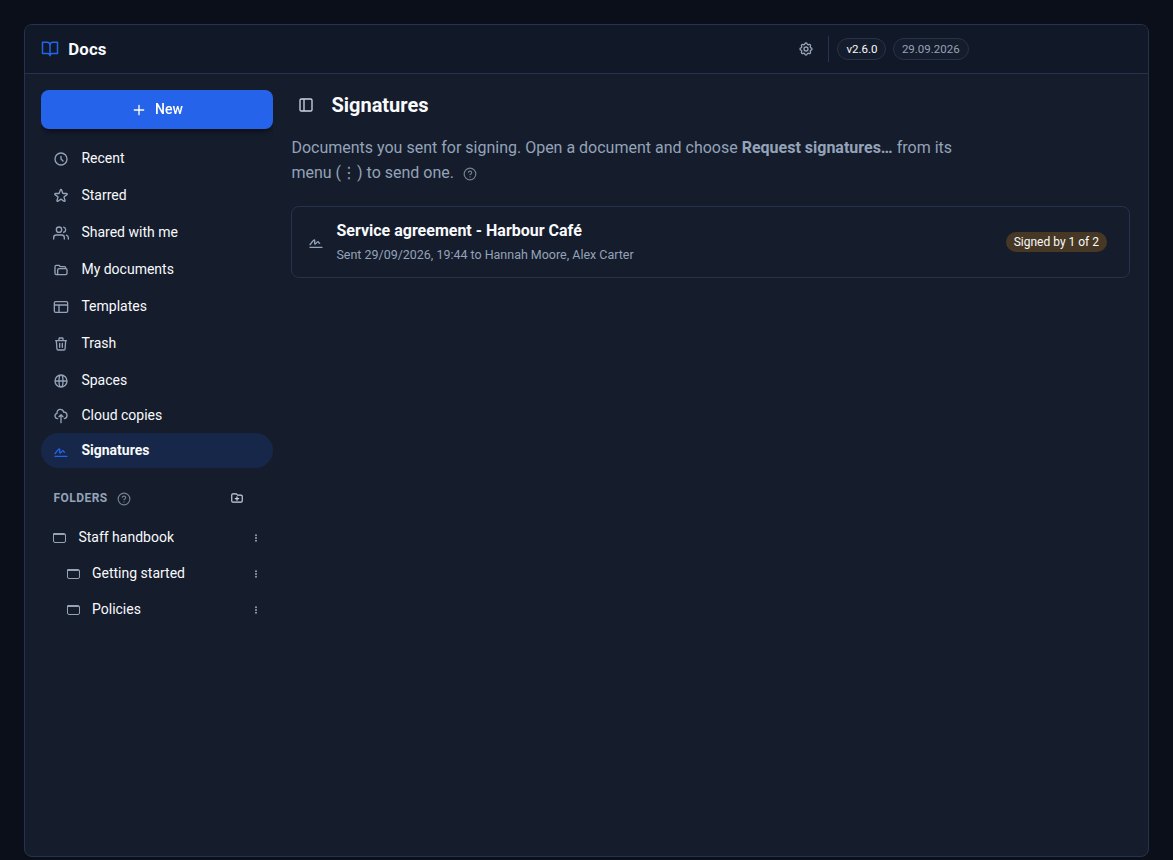
Press Send for signing. A chip beside the document's title now says how far it has got.
Step 3: What the signer sees
Hannah's email has a link that is hers alone. It opens the whole agreement on a plain page of its own, with the document's fingerprint underneath.
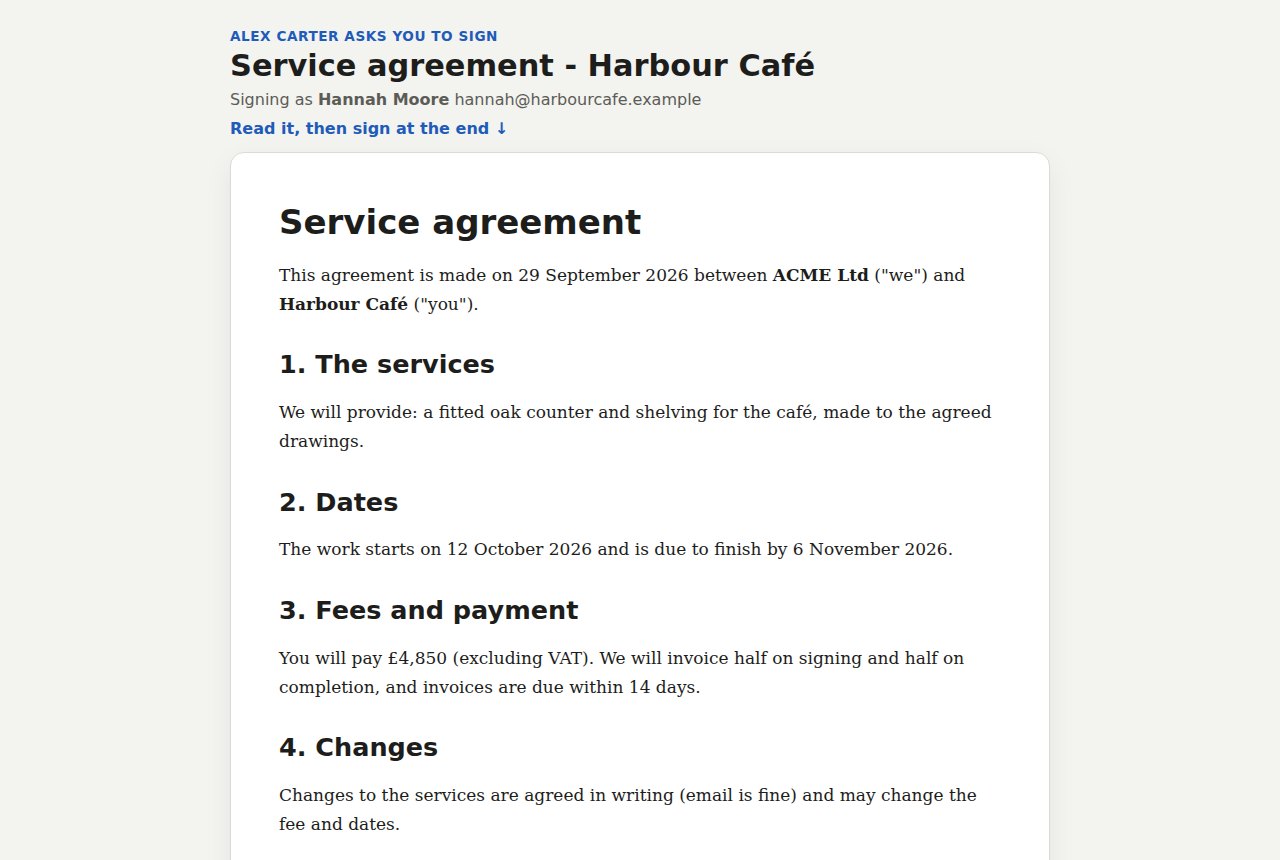
At the end she ticks the box to agree to sign electronically, then Types her name or Draws her signature with a mouse or finger, and presses Sign. She can also Decline to sign and say why - then nobody else can sign it, and you are told.
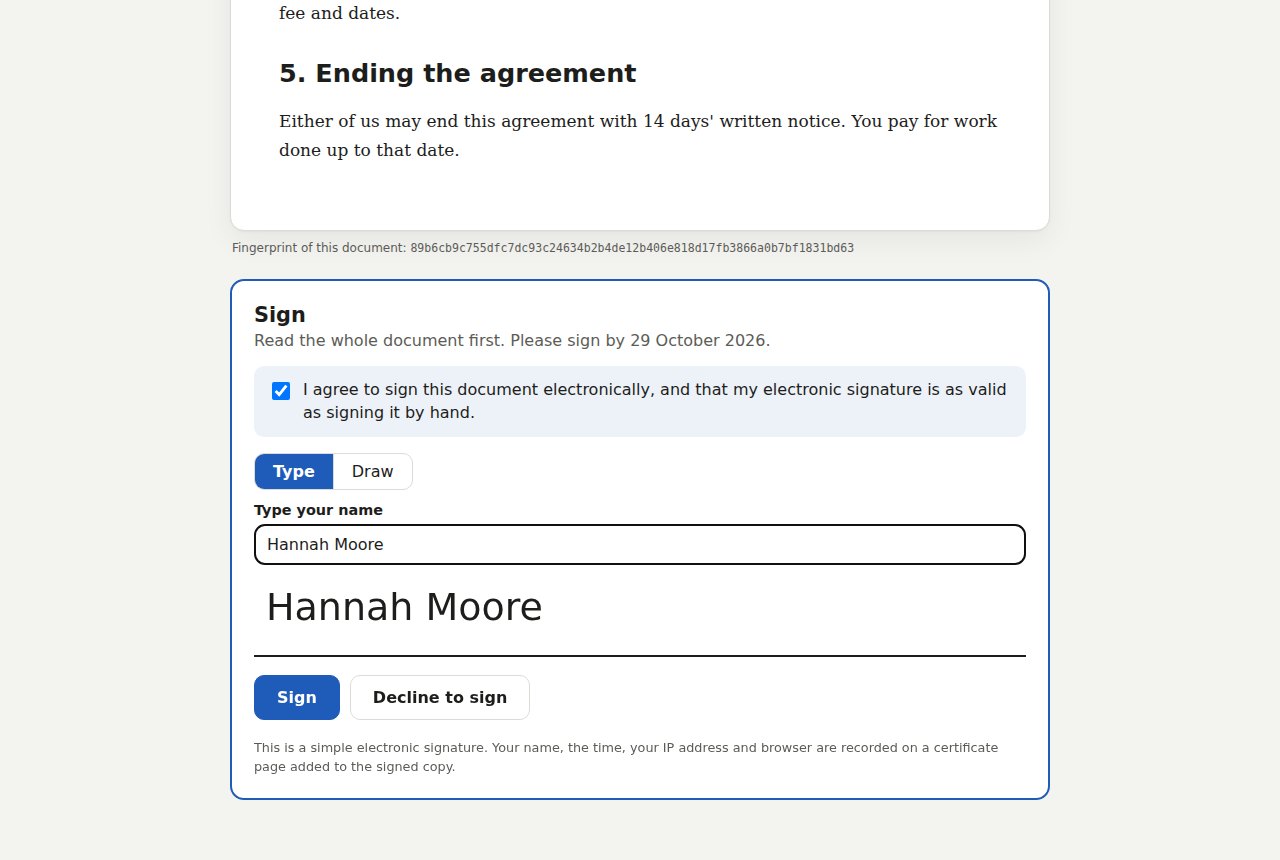
A link works only for the person it was sent to, only while the request is open and - in order - only once it is their turn.
Step 4: Follow it from the Signatures screen
In Docs, click Signatures in the rail. Every document you sent for signing is listed with where it stands. You are also sent a notification as each person signs or declines.
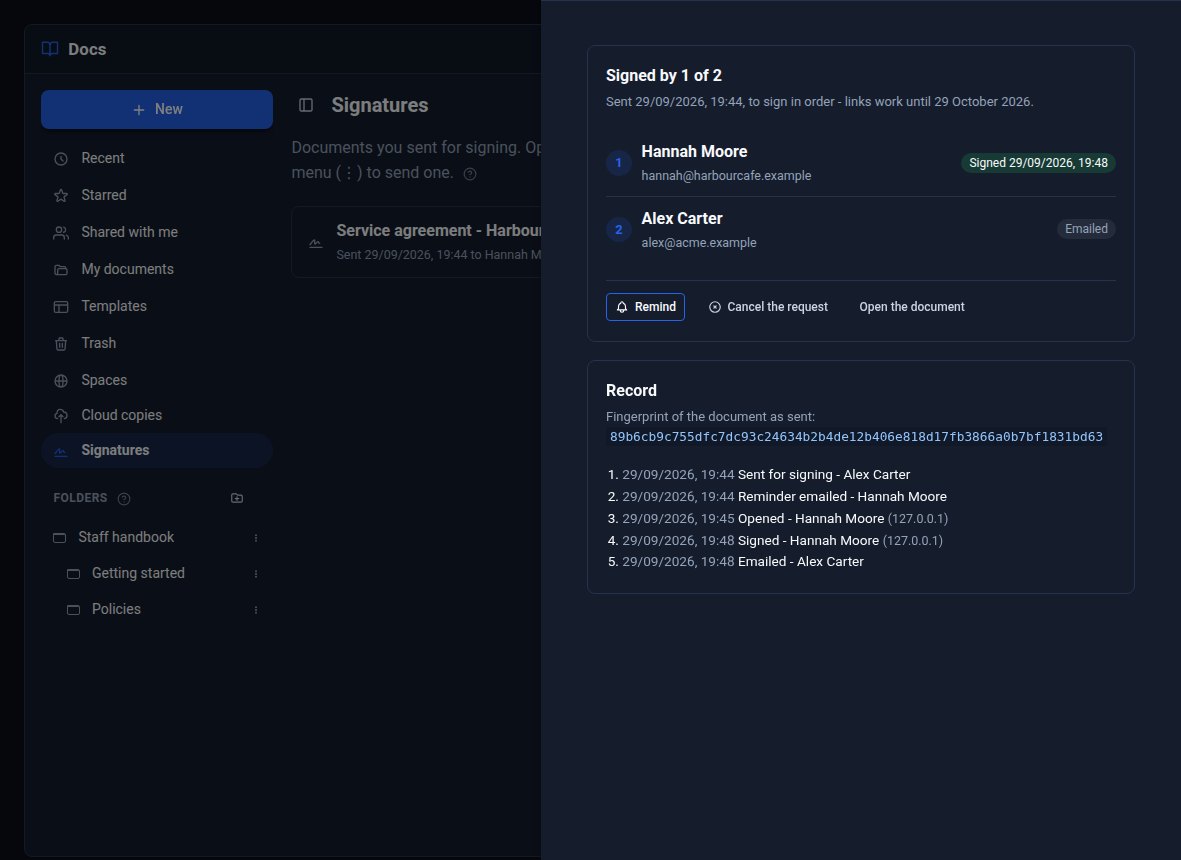
Click the request to see each person - emailed, opened, signed or declined - and the full Record of who did what and when, with the fingerprint of the document as sent. Remind emails whoever's turn it is again (at most once an hour each); Cancel the request stops every link.
Step 5: The signed copy
When the last person signs, everyone - you included - is emailed the signed copy: the document, every signature and a certificate page with who signed, when, and the document's fingerprint. It is a PDF when your server can make one, otherwise a web page you can print. Your own copy also records each signer's IP address and browser; theirs leaves those out.
The email carries the document as sent too. Its fingerprint (SHA-256) is on the certificate: change a single character and the fingerprint changes, so anyone can check a copy is the one that was signed. Signed PDF and Signed copy (web page) are on the request in the Signatures screen whenever you need them again.
Step 6: Bonus - a link with an expiry date and a password
Some documents are for one customer's eyes and only for a while - a price list, say. Open its Share panel and switch on the public link. Under Protect the link:
- choose the last day it should work (the whole of that day still counts), and
- type a password of at least 6 characters.
Press Save. After the date the link says it has expired. With a password, anyone opening the link is asked for it first, and their browser remembers it for 12 hours. Send the password separately - not in the same email as the link.
What you built
An agreement sent, signed in order and returned to everyone with a certificate page and a fingerprint anyone can check - and a public link that only works for the right people, for as long as you choose.
Keep going
- Quotes and letters from templates
- Review a document with comments and suggestions - agree the wording before you send it
- Docs Pro
Want Docs Pro on your site?
Docs Pro is a Pro Tool. Tell us about your site and we will set it up with you.