You will do
Have Sam check ACME's Price list 2027: Sam suggests new prices and dates, Priya asks a question, and Alex settles it all in a few clicks.
You need
- Docs and Docs Pro on your site
- A colleague with a sign-in whose role includes Docs
Why
Nothing changes until you say so, you can see exactly who suggested what, and none of it reaches a reader before it is agreed.
Step 1: Share it as a Suggester
Open the price list, choose Share and add Sam. Next to Sam's name, choose Suggester and press Save access.
A Suggester can read the document, comment on it and suggest changes to its words - but cannot change anything directly. The other choices are Viewer (read, copy, download) and Editor (change it and share it).
Step 2: Sam suggests changes
When Sam opens the document and starts editing, a Suggesting chip shows beside the title - for a Suggester it is always on. Everything Sam does becomes a suggestion:
- Typing adds words, underlined in green.
- Backspace or Delete strikes words through in red instead of removing them.
- Selecting words and typing is one suggestion: the old words struck, the new ones added.
- Striking out Sam's own suggested words simply removes them.
- Ctrl+Z and Ctrl+Y undo and redo.
Formatting and layout - bold, headings, lists, tables, joining paragraphs - are for editing directly, so they are off while suggesting. Sam's suggestions are saved as they go, and you are notified that Sam suggested changes.
Editors can suggest too: while editing, choose Suggest changes from the document menu (⋮). Choose Stop suggesting, or click the chip, to edit directly again.
Step 3: Comment on the words
Priya is an Editor and has a question rather than a change. While editing, Priya selects "Orders over £500" and chooses Comment on the selection... from the document menu. The words are highlighted and the comment goes into the Comments panel on the right.
Anyone who can open the document - Viewers and Suggesters included - can comment on the whole document from the box at the top of the panel, and reply to any comment.
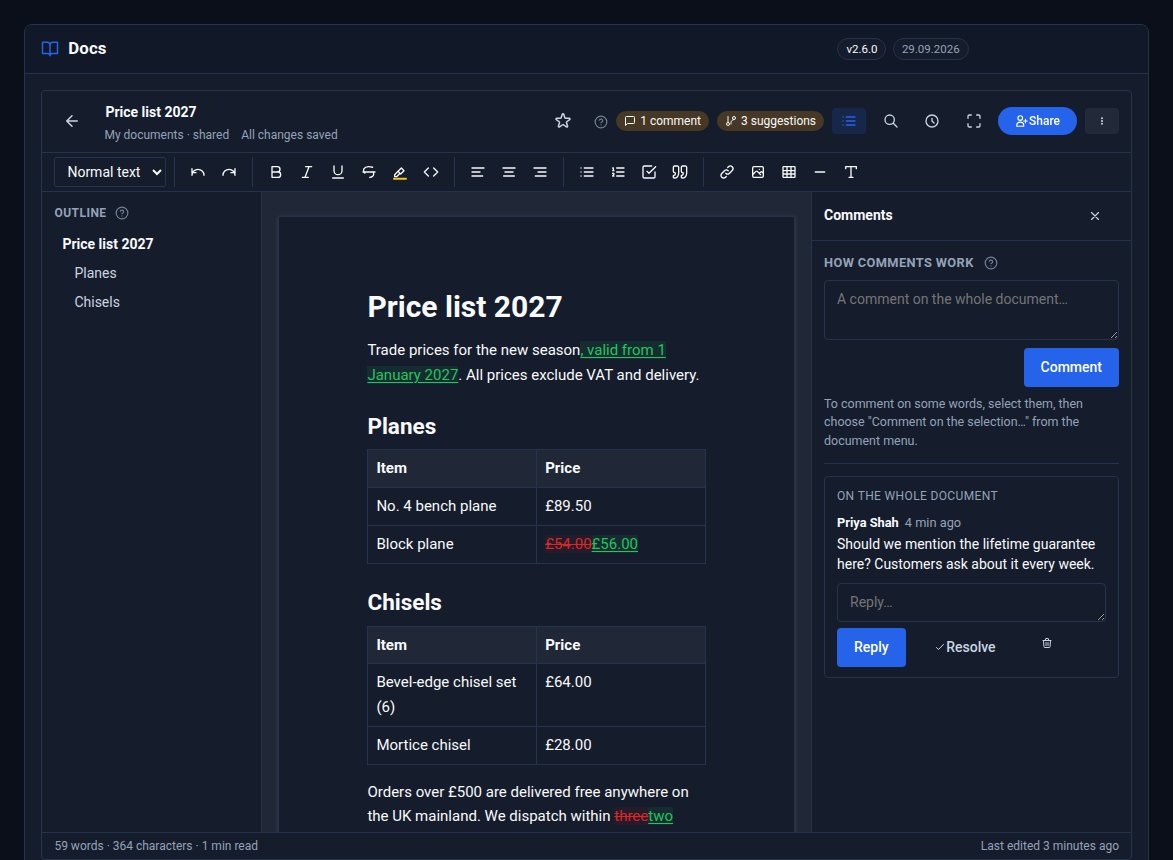
The document's owner and everyone in a comment's thread are notified of new comments and replies. Click highlighted words to find their comment; click the quoted words in a comment to find them in the document.
Step 4: Review the suggestions
Back to Alex, the owner. A chip beside the title says 3 suggestions - click it (or choose Suggestions from the document menu). Each suggestion says who made it, when and what it does: "Replace three with two", "Add , valid from 1 January 2027".
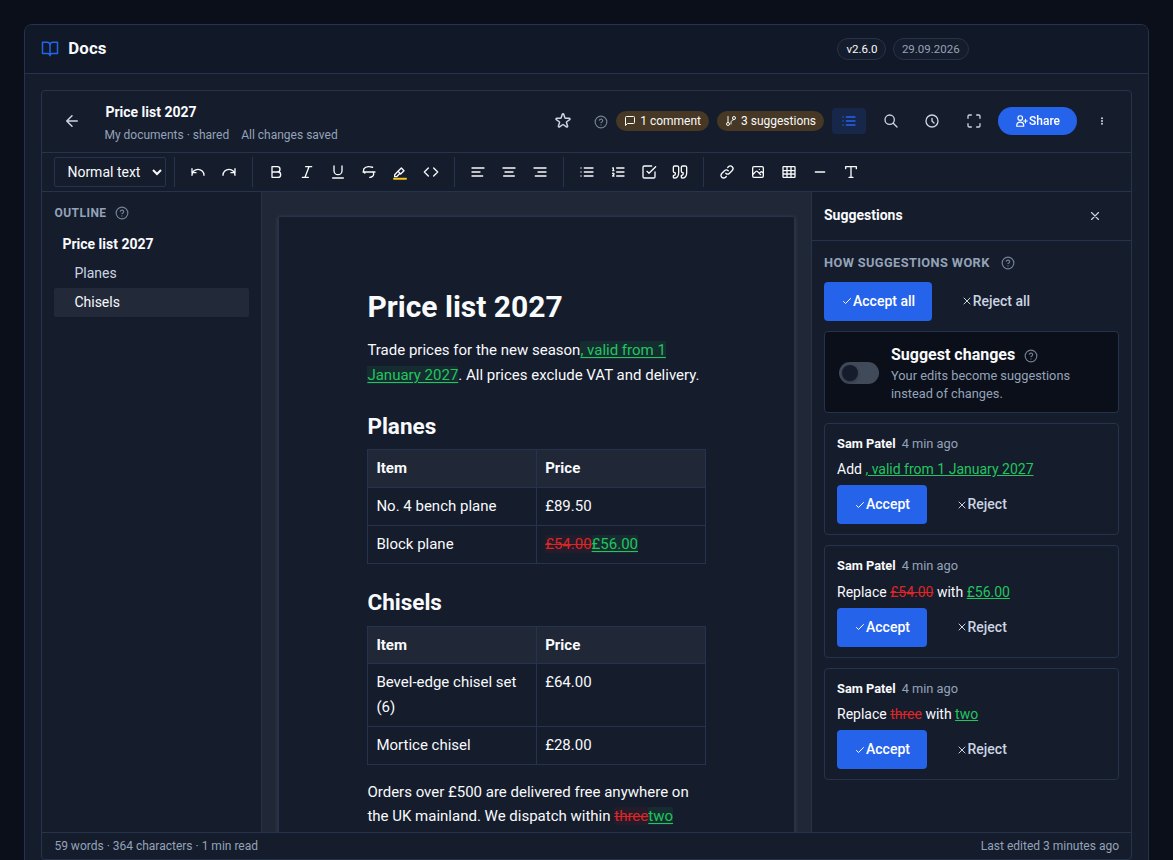
While editing, Accept or Reject each one, or use Accept all / Reject all. Click a suggestion to find it in the document, or click the marked words to find it in the list. Sam is notified once the suggestions have been reviewed, and can Take back any of Sam's own that are still waiting.
Step 5: Settle the comments
Reply to Priya's comment, or press Resolve once it is dealt with - it folds away under "resolved", and a new reply opens it again. Delete removes a comment and its replies. A chip beside the title counts the comments still open.
Step 6: What readers see
Until they are accepted, suggestions exist only in Docs. The public link, Spaces, downloads, Word and cloud copies, Send to, merge copies and documents sent for signing all show the price list as it was. Comments never leave Docs at all.
One person edits at a time. While Sam is suggesting, others see who is editing; an editor can take over, and anything Sam had not saved is kept for Sam as a copy.
What you built
A review without the email chain: suggested changes you accept or reject one by one, questions answered in place, everyone told when something needs them - and readers only ever seeing the agreed version.
Keep going
- Build a staff handbook with Domma Spaces - publish the reviewed pages
- Get a contract signed
- Docs and Docs Pro
Want Docs Pro on your site?
Docs Pro is a Pro Tool. Tell us about your site and we will set it up with you.