You will build
A working Domma CMS site on your own computer, signed in and ready for pages.
You need
- Node.js 24 or later
- A terminal
- Your mail provider's SMTP details (optional)
The example
Throughout these tutorials we build the site of ACME Ltd, a Sheffield maker of workshop tools.
Step 1: Check your Node version
Domma CMS runs on Node.js 24 or later. Check what you have:
node --version
If it prints v22... or older, install Node 24 first (with nvm that is nvm install 24). The installer checks too: on an older Node it stops and tells you which version it found, so nothing is half-installed.
Step 2: Create the site
One command creates a folder, copies the CMS into it, installs its packages and starts the setup wizard:
npx domma-cms acme-site
The wizard asks four things in the terminal:
- Your first admin account - full name, email address and a password of at least 8 characters. This is the Super Admin, who can do everything.
- Site title and tagline - for ACME,
ACME LtdandWorkshop tools, made in Sheffield. - A theme - pick a number, or press Enter for Charcoal Dark. You can change it later in seconds.
- The port - press Enter for 4096.
It then adds starter pages, forms and collections so you are not facing an empty site.
Setting up somewhere without a terminal wizard? Run
npx domma-cms acme-site --no-setup. The first visit to/adminthen shows a sign-up form for the first Super Admin, followed by a short onboarding wizard for the site name and theme.
Step 3: Start it and sign in
cd acme-site
npm run dev
Open http://localhost:4096 for the public site and http://localhost:4096/admin for the admin, and sign in with the account you just made.
Step 4: Read the dashboard
You land on Overview > Dashboard: page views today, visitors now, pages and drafts, form submissions this week and a site health figure, with a 30-day traffic chart and recent activity below.
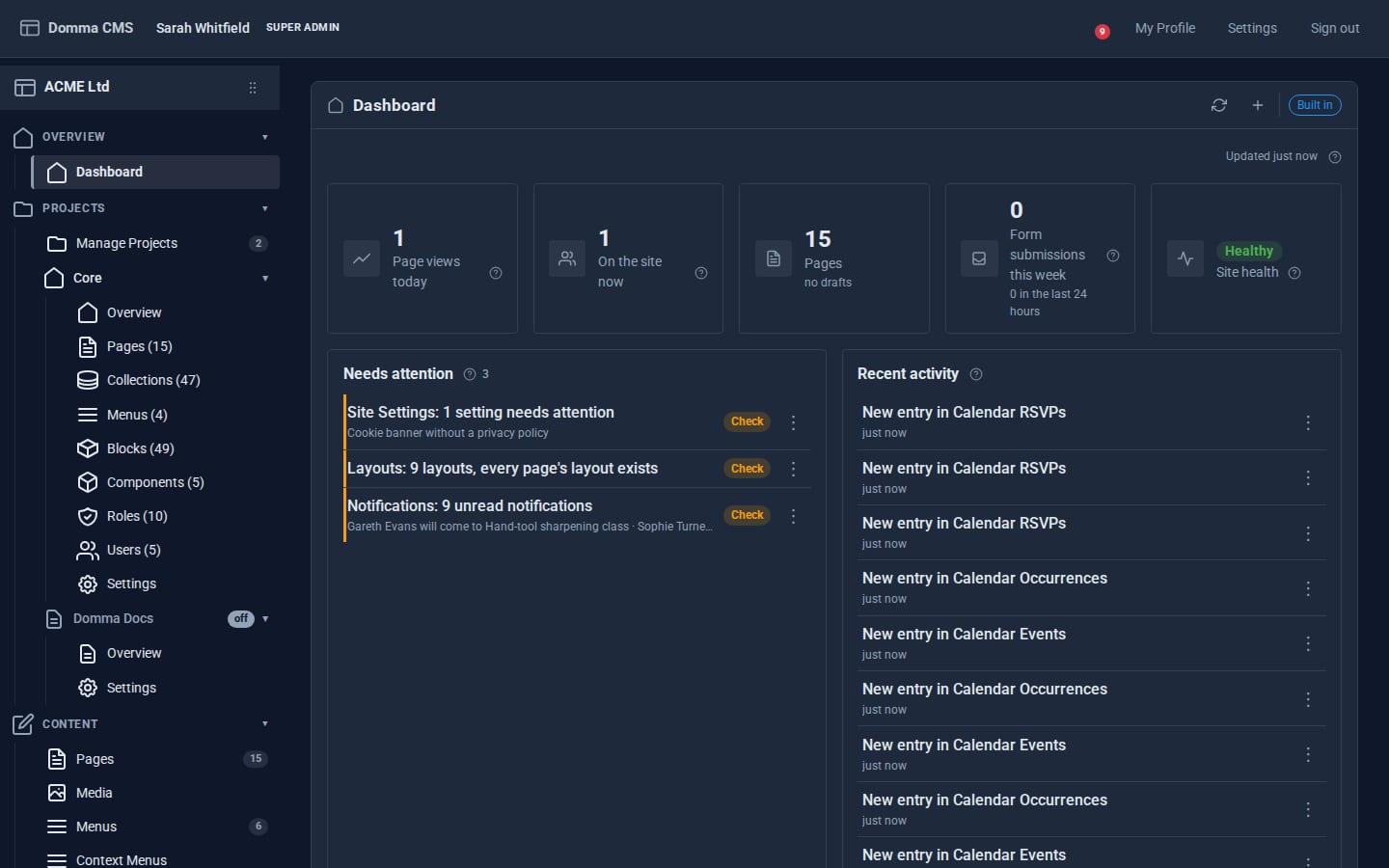
The card to watch is Needs attention. It gathers every red or amber badge in the sidebar and any health check that is not OK, and each line takes you to the screen that fixes it. On a brand new site it usually says one thing: email is not set up.
Step 5: Tell the site its own address
Go to System > Site Settings. On the General tab, set Site URL to the address the site will live at, for example https://acme.example. Password reset links, canonical links and the sitemap are built from it, and it is checked as you type.
Save with the save button in the banner, or Ctrl+S.
Step 6: Set up email
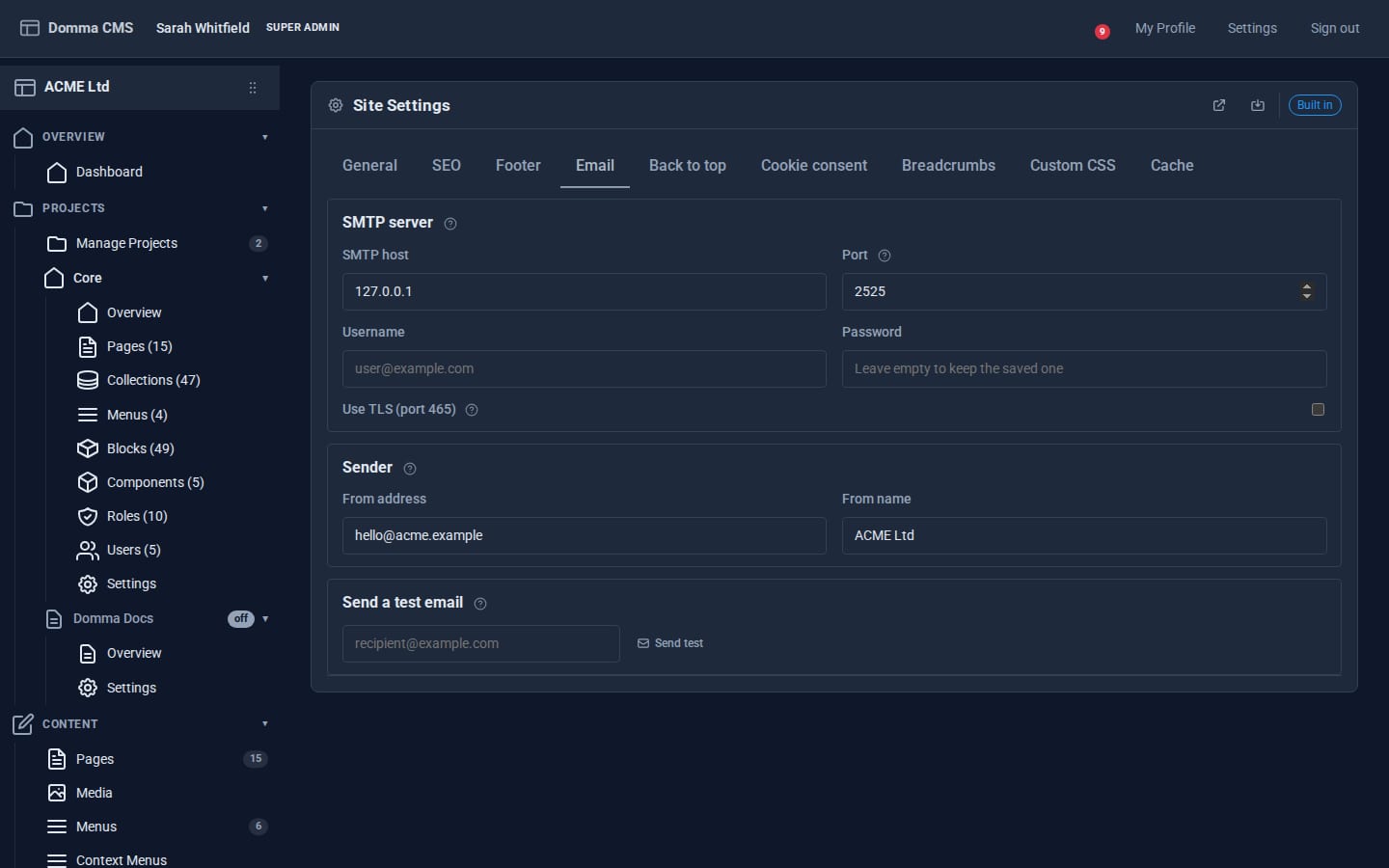
Still in Site Settings, open the Email tab. A red dot on the tab means no SMTP host is set - and that matters: without one, form notifications and password resets go to a throwaway test inbox that reports success but reaches nobody.
Fill in SMTP host, Port, Username and Password from your mail provider (tick Use TLS for port 465), then a From address and From name such as ACME Ltd. Save, then use Send a test email at the bottom of the tab. The test uses the saved settings, so save first.
Step 7: Look around
A few minutes in the sidebar pays off:
- Content - Pages, Media, Menus, Context Menus and Theme.
- Data - Collections, Forms, Views, Blocks, Components and the API Builder.
- Tools - the built-in Tools (Analytics, Contacts, Notes, Todo, SEO) and any you add.
- Documentation - the full handbook, inside the admin and always matching the version you run.
Every screen has small (?) icons. Click one for a plain-English note on what the setting does.
What you built
A Domma CMS site with its Super Admin, its address and working email, and a dashboard that will tell you when something needs your attention. Nothing was compiled and there is no database to look after: pages and settings are files in the acme-site folder.
Keep going
Try it on your own site
Everything in this tutorial is free. One command gets you a site to follow along on.