You will build
ACME's Trade account application: two steps, questions that appear only when they apply, a polite early finish for applicants outside the UK, and an email to the sales team.
You need
- A Domma CMS site with email set up (how)
Built in
The form builder, logic, wizards, triggers, spam protection and the submissions inbox are all part of the free CMS.
Step 1: Create the form
Go to Data > Forms and click the + (New form) button. Call it Trade account application. The editor has four tabs: Fields, Form Details, Settings and Actions, with a live preview that draws the form exactly as visitors will see it.
Step 2: Add the first step's fields
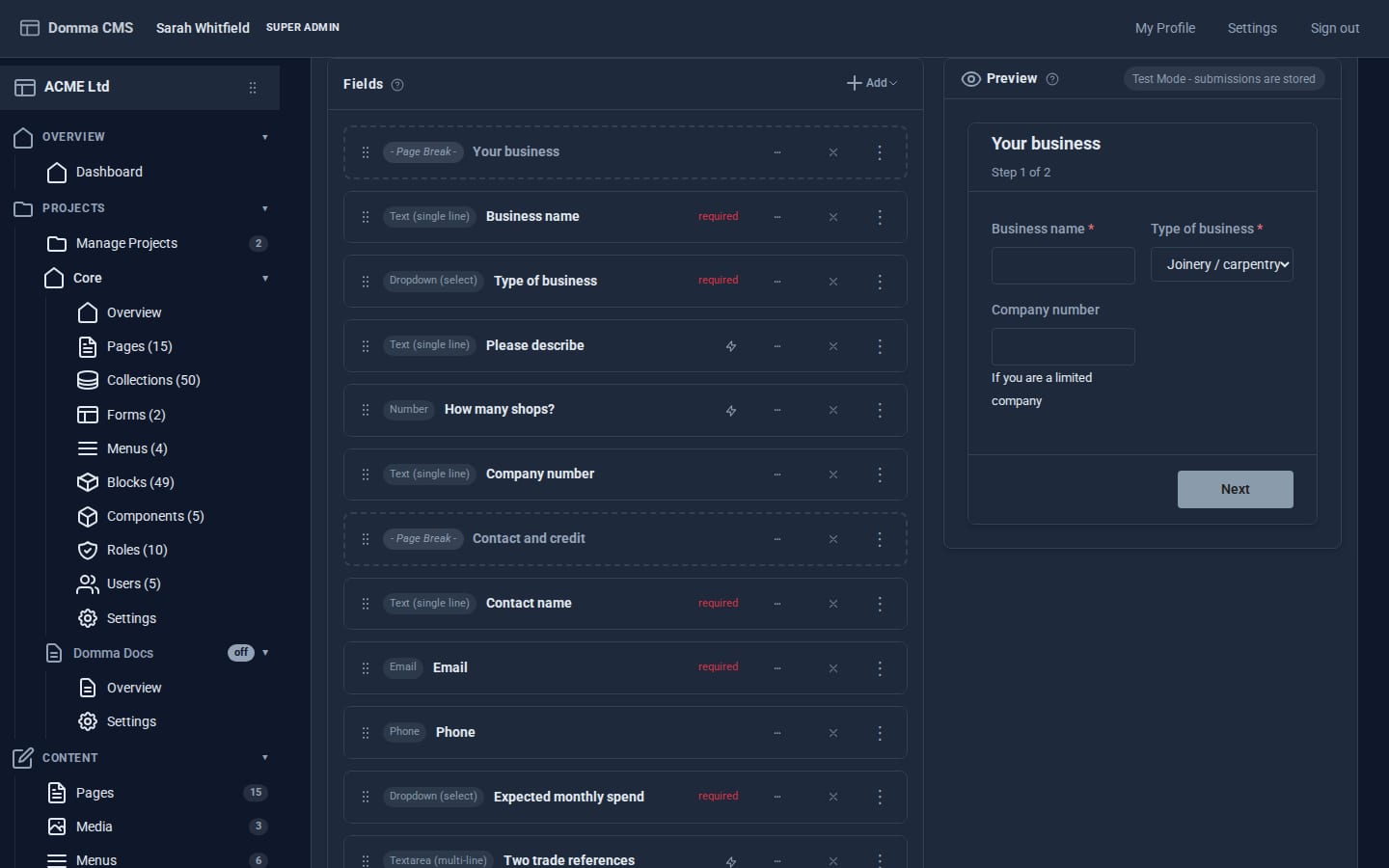
On Fields, use + Add > Field for each question. Every field card has a label, name, type, required tick, placeholder, helper text and width.
- Business name - Text, required
- Type of business - Dropdown with options
joinery: Joinery / carpentry,builder: Builder,school: School or college,retailer: Retailer,other: Other - Please describe - Text
- How many shops? - Number
- Company number - Text
There are 18 field types, including Chooser (option cards with pictures), File upload, Date, Password and Hidden. Drag cards by their grip to reorder.
Step 3: Split it into steps
Use + Add > Page Break above Business name, and give the break the step title Your business. Add another Page Break after Company number titled Contact and credit, then add that step's fields:
- Contact name (Text), Email (Email), Phone (Phone)
- Expected monthly spend - Dropdown:
under-500: Under £500,500-2000: £500 - £2,000,over-2000: Over £2,000 - Two trade references - Textarea
- I agree to the trade terms (30 days net) - Single checkbox, required
The form is now a wizard with Previous and Next buttons. Each step is checked before the visitor can move on, and answers from earlier steps are kept.
Step 4: Show questions only when they apply
Open Please describe's card and expand its ⚡ Conditional Logic. Under Visibility, set the default to hidden and add a visibility rule: When Type of business equals Other - visible.
Do the same for How many shops? (visible when the type equals Retailer) and Two trade references (visible when monthly spend equals Over £2,000). Hidden fields are not required while they are hidden, and the server checks the same rules on submit.
Conditional Logic can also make a field required only in some cases, validate it against a pattern or another field, and change one dropdown's options based on another's answer. Conditions use operators such as equals, contains, greater than, is empty and matches a pattern, combined with all or any.
Step 5: End the form early for applicants you cannot serve
ACME only opens trade accounts in the UK. Add a Radio field Is your business based in the UK? (yes: Yes, no: No) as the first question, then open its 🎯 Triggers panel and click Add trigger:
- When:
Is your business based in the UK?equalsNo. - Then: Add action > End the form here.
- Message shown in place of the rest:
Sorry - we only open trade accounts for UK businesses. Our shop ships worldwide. - Leave Save the answers given so far unticked if you do not want to keep them.
The rest of the form is masked, the button becomes Finish, and the entry (if saved) is marked with how the form ended. Change the answer back to Yes and everything returns - trigger actions like this last only while the answers match.
Other trigger actions include showing a banner or toast, hiding or requiring other fields, blocking submission with a reason, jumping to a step, redirecting after submit, a celebration, running a CMS Action and notifying the admins. Messages can include answers, such as Thanks, {{contact_name}}.
Step 6: Decide what happens on submit
On the Actions tab:
- Submissions are stored in the form's own collection by default (or one you choose), so every application is kept and searchable.
- Tick Email Action and add the sales team to Recipients, with a Subject Prefix such as
[Trade]. - A Webhook Action can post each submission to another system.
- Spam Protection adds a hidden honeypot field and a per-visitor Rate Limit (per minute). Bots are quietly turned away while real people never see a puzzle.
On Settings, write the Success Message or give a Success Redirect URL, choose the layout (a 2-column grid suits this form) and where the submit button sits.
Save, then use Send a test email on the Forms list to check delivery.
Step 7: Put it on a page
[form name="trade-account" /]
Add that line to your Trade accounts page and publish. Applications arrive in the form's Submissions (open it from Data > Forms): one row per applicant, with Inbox, New this week and Spam filters, search across every answer, a date range, and CSV or JSON export.
What you built
A two-step application that asks only what it needs to, turns away applicants you cannot serve before they waste their time, keeps every answer, emails the right people and filters out spam - without a line of code.
Keep going
- Your first collection - the applications are a collection too
- Build a client portal with a confined role
- Forms - everything the form builder does
Try it on your own site
Everything in this tutorial is free. One command gets you a site to follow along on.