You will build
ACME's Staff handbook at /spaces/handbook: a welcome page, a Getting started section and the policies, readable on any screen.
You need
- Docs and Docs Pro on your site
- A handful of documents to publish - or use the Handbook page template
Why
The handbook lives where your team already works. You write in Docs; the site shows only what you publish, when you publish it.
Step 1: Put the documents in a folder
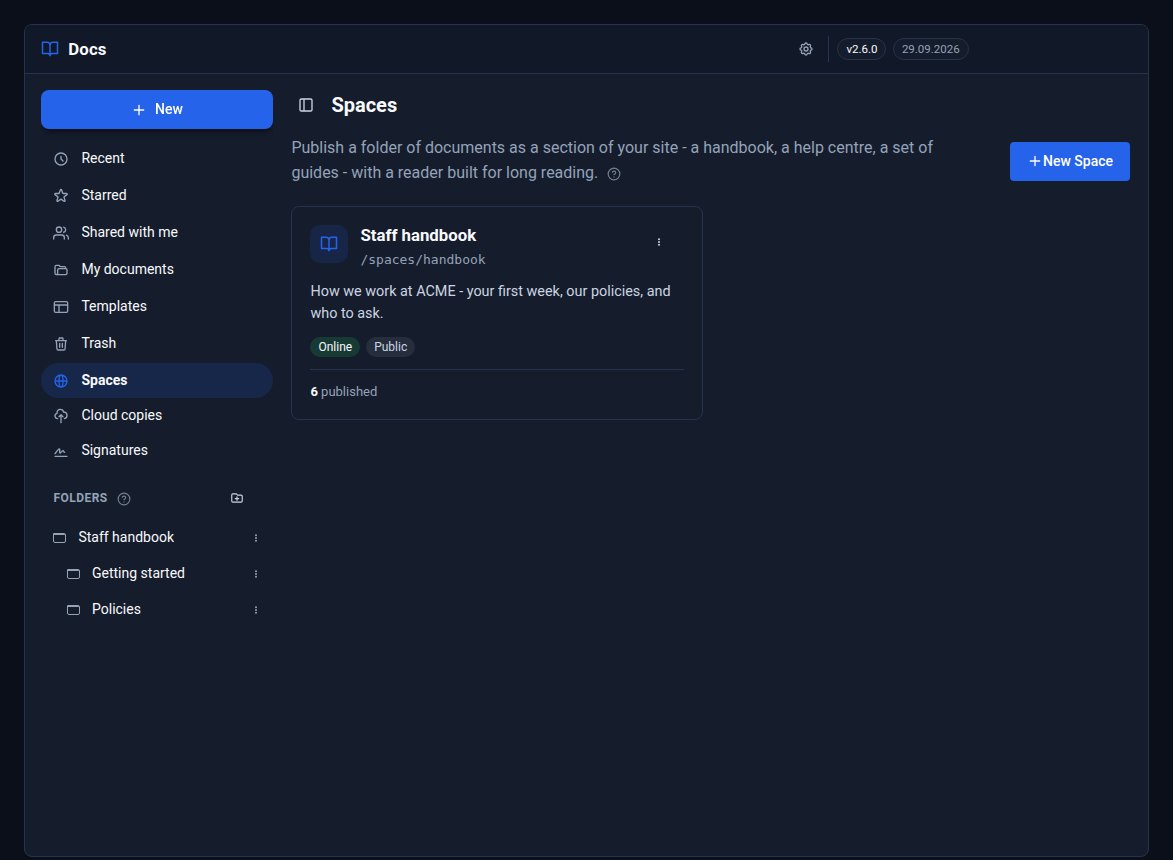
A Space is one Docs folder and the folders inside it. In Docs, make a folder called Staff handbook (Folders in the rail on the left), then two inside it: Getting started and Policies. Subfolders become sections in the reader's contents.
Write or move the pages into them. Starting from scratch? Templates has a ready-made Handbook page laid out for the reader, and a Policy template with a purpose, rules and a review date. A Word file can come in too: drop a .docx onto Docs Home.
Step 2: Make the Space
Click Spaces in the rail, then New Space. Give it a name - the Address fills itself in from it (handbook) - pick the Staff handbook folder, add a one-line Description and choose Who can read it. Leave it Public for now; Step 5 comes back to this.
Step 3: Publish the pages
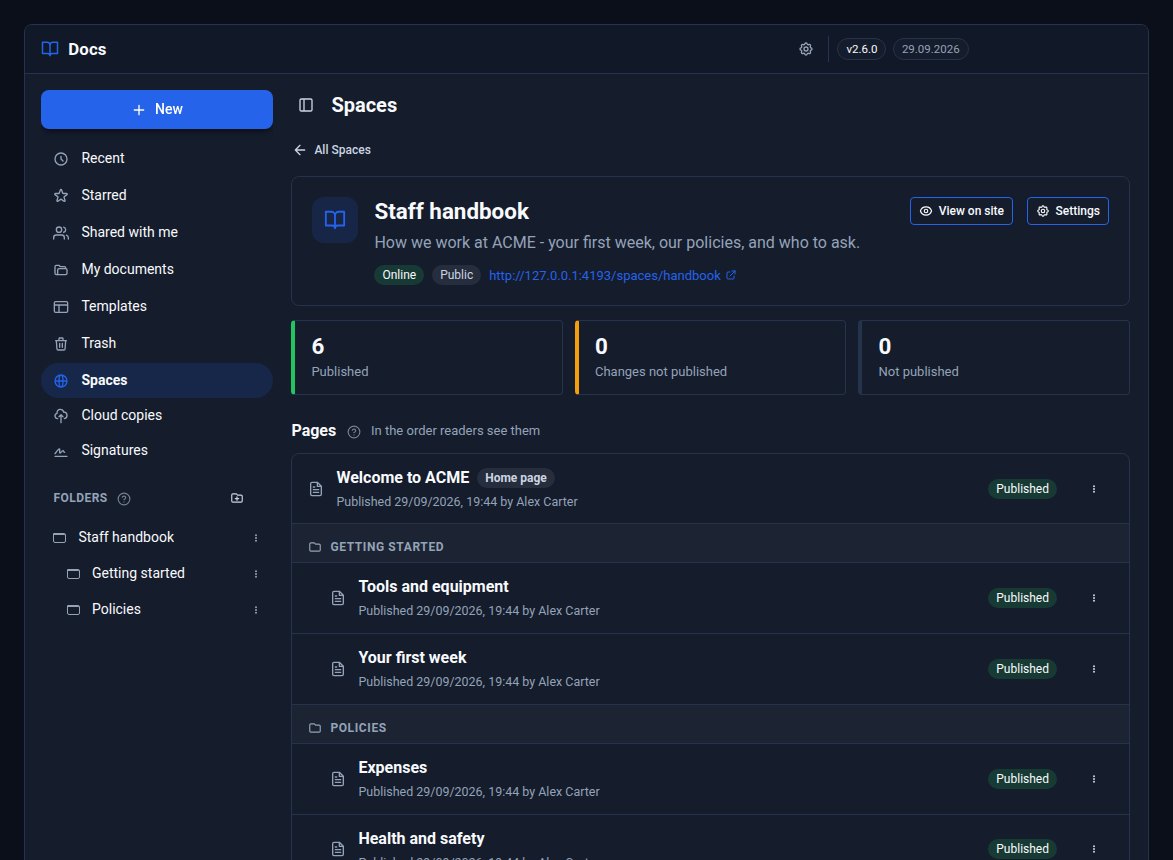
The Space opens with every document in its folder, in the order readers will see them, each marked Not published. Click Publish all.
Nothing reaches the site until you publish it: a page is a copy of the document as it was when you pressed Publish. Right-click a page (or use its ⋮ button) to Move up or Move down in the contents, View on site or Take down.
Step 4: Choose a home page
Right-click Welcome to ACME and choose Make this the home page. Readers who go to /spaces/handbook now land on it. Without a home page they see a contents page instead.
In Settings you can also choose how the reader first looks - a Starting theme and Starting font. Each reader can change both, and their choice is remembered.
Step 5: Decide who can read it
Open Settings and choose Who can read it:
- Public - anyone. Public Spaces go into your
sitemap.xml. - Signed-in members - anyone signed in to your site. Readers who are not are asked to sign in.
- Chosen roles - people holding the roles you tick, or a role above them.
A staff handbook usually wants Chosen roles. Members-only Spaces are never offered to search engines. Switch Online off to take the whole Space off the site at once - handy while you prepare it.
Step 6: Read it the way your team will
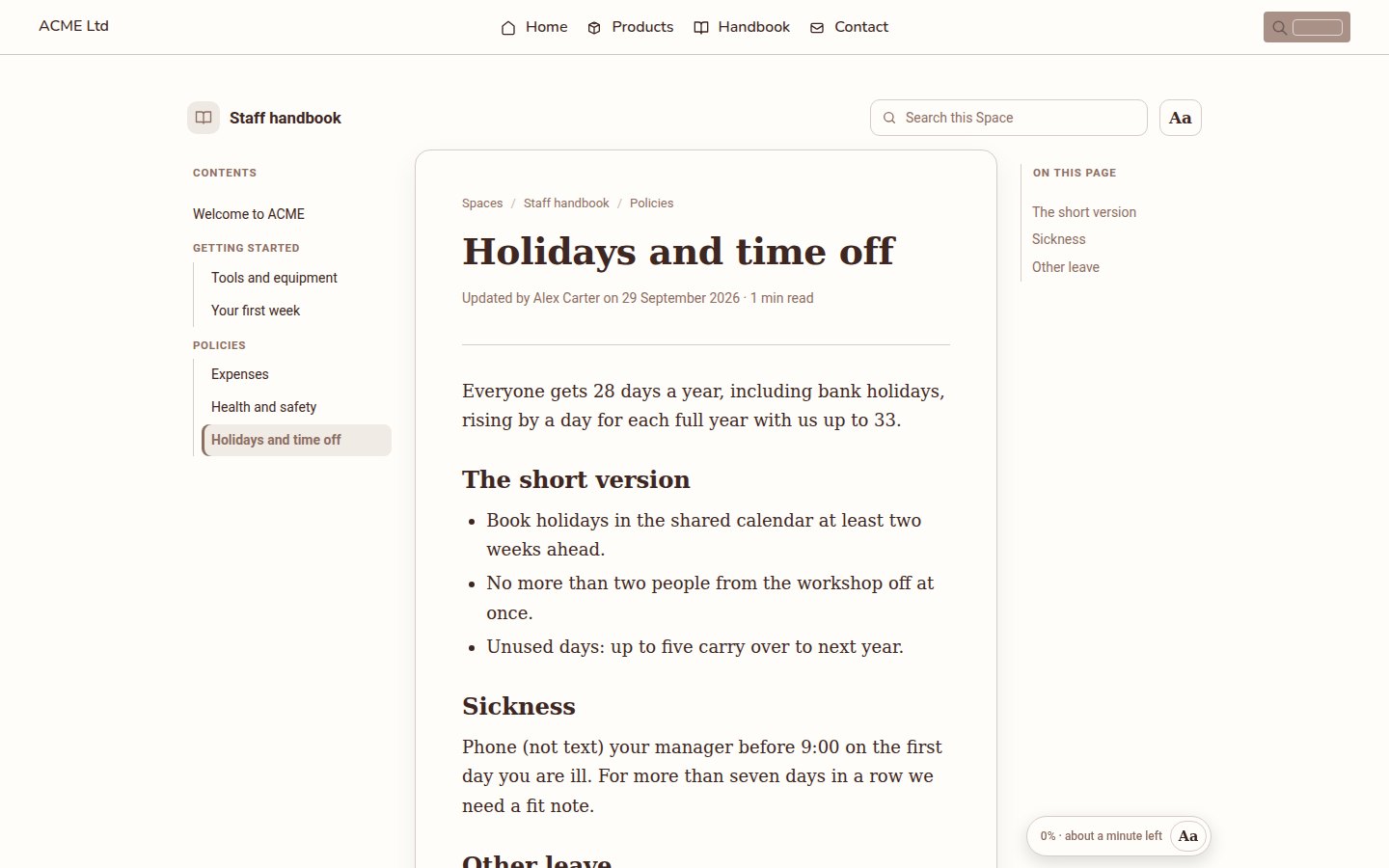
Click the address under the Space's name. The reader has the contents on the left, On this page on the right, Search this Space at the top, and a bar at the bottom showing how far through the page you are.
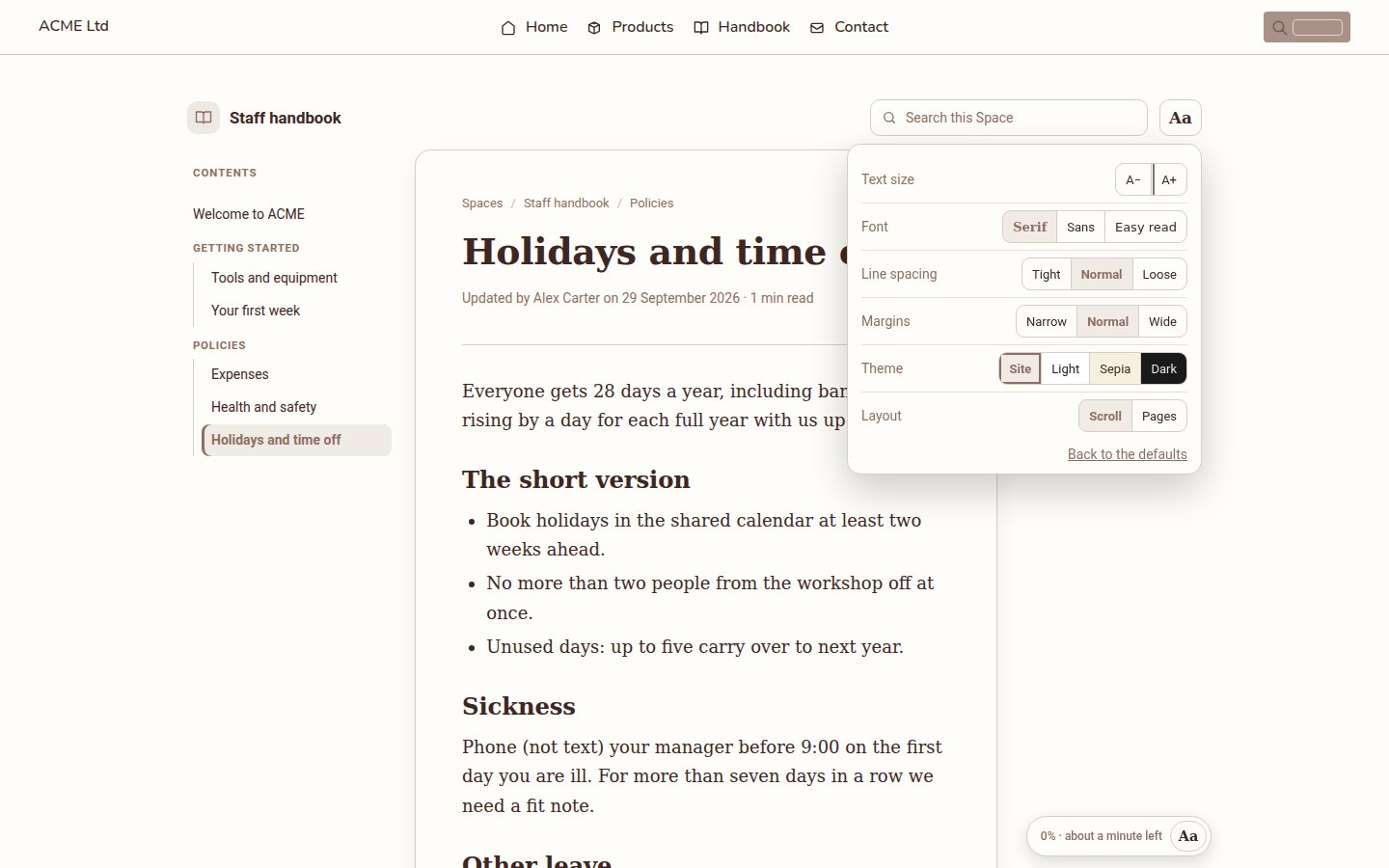
Aa opens the reading settings: text size, a serif, sans or Easy read font, line spacing, margins, a theme (the site's own colours, Light, Sepia or Dark) and the layout - Scroll, or Pages to turn pages like an e-reader with the arrow keys, a swipe or the space bar.
Come back later and the reader returns to where you stopped. Settings and places stay in the reader's own browser - nothing about readers is stored on your site. On a phone the contents sit behind a button and the text fills the screen.
Step 7: Change a page and publish again
Edit Holidays and time off in Docs as usual. The site keeps showing the published version while you work, and the page is marked Changes not published - in the Space and in a chip beside the document's title. When it is ready, choose Publish changes from the document menu, or Publish N changes in the Space to send every changed page at once.
Moved a document out of the folder, or put it in Trash? Its page comes off the site straight away and is listed under No longer in the Space.
What you built
A staff handbook on your own site: sections from folders, a home page, the right people able to read it, a reader that suits long reading on any screen, and changes that go live only when you say so.
Keep going
- Review a document with comments and suggestions - get a page checked before you publish it
- Build a client portal with a confined role - roles to use with Chosen roles
- Docs and Docs Pro
Want Docs Pro on your site?
Docs Pro is a Pro Tool. Tell us about your site and we will set it up with you.