You will build
ACME's online shop: products with sizes and stock, a storefront, a basket that follows shoppers round the site, card payments, and your first order sent out.
You need
- A Domma CMS site with its Site URL set
- A Stripe or PayPal account, or just bank details for offline payment
Free
Shopping Cart is a free Tool with no fees on top of your payment provider's. Shopping Cart Pro adds discounts, shipping zones, tax and emails.
Step 1: Switch the Shop on
Open Marketplace, find Shopping Cart on the Installed tab and switch it on. The site restarts once, and Shop appears in the sidebar.
Open it: a new shop shows Open your shop with three steps. Click or try samples to load six sample products with pictures, options and stock - handy for a first look. You can delete them later.
Step 2: Add a product
Click Add a product (or + in the banner). Fill in:
- Name, a short summary and a Markdown description
- Price, and a "was" price to show a saving
- SKU, category, tags, featured
- Stock - how many you have
- Images - a gallery; the first is the main picture
- Weight - used by shipping rates in Shopping Cart Pro
For ACME's Bench apron, add an option called Size with Small, Medium and Large. Each option can have its own price, SKU and stock, so you never sell a size you do not have.
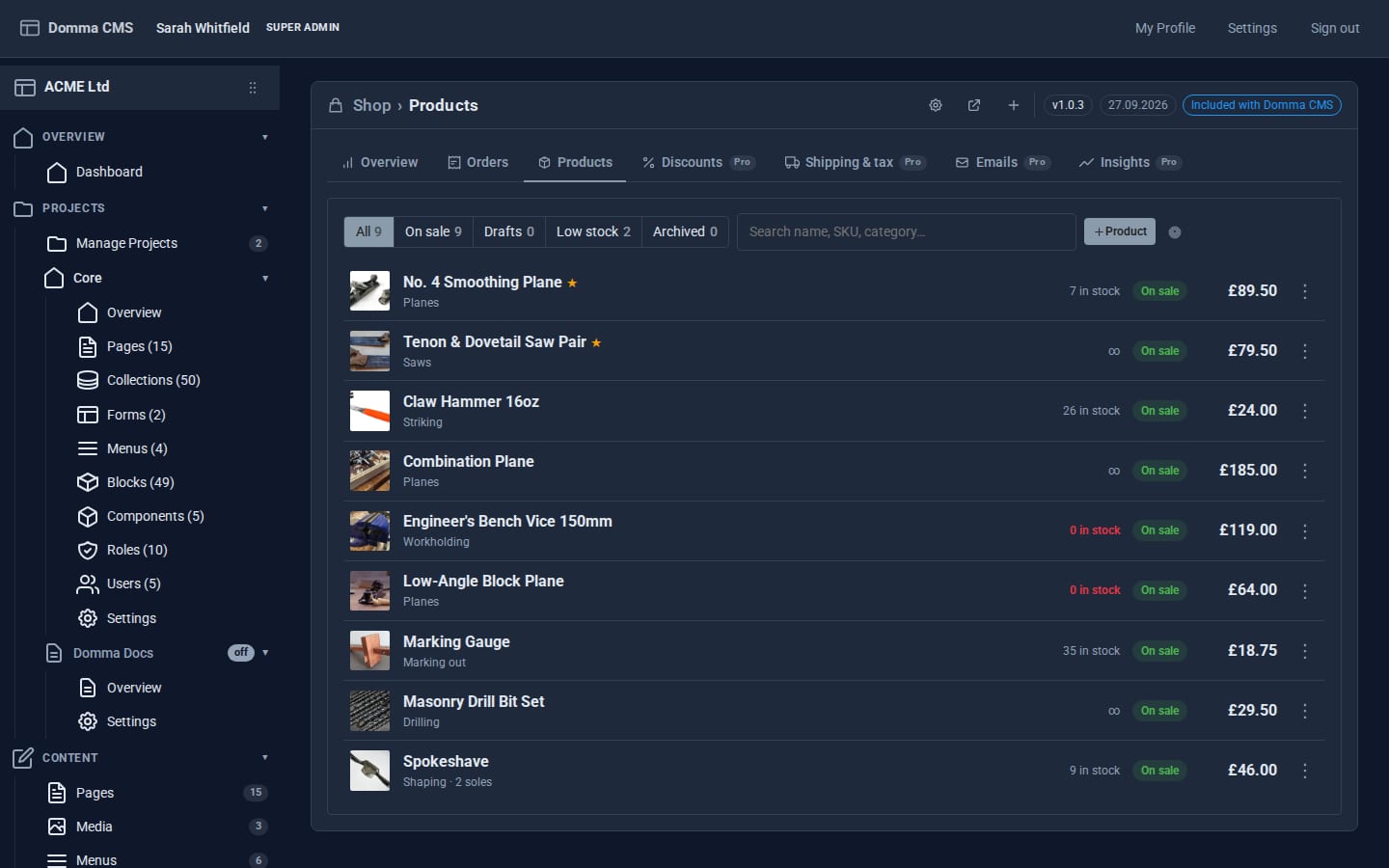
Save and set it on sale. The Products tab filters All, On sale, Drafts, Low stock and Archived; right-click a product to duplicate, feature, set stock or archive it.
Step 3: Choose how you get paid
Click the cog for Shop settings and open the payment section. Turn on at least one:
- Stripe - shoppers pay on Stripe's own secure page. Paste your keys and the webhook secret; the settings show the webhook address to give Stripe.
- PayPal - sandbox for testing, live when you are ready.
- Pay offline - bank transfer or cash on collection, with your own instructions. On by default.
Each provider has a Test button. Keys are kept on the server and never sent to the browser. While you are in settings, set the currency (pounds by default), delivery countries, flat shipping or a free-shipping threshold, click and collect, and whether prices include VAT.
Step 4: Open the storefront
Click the open-the-shop button in the banner. The storefront lives at /shop (you can move it) with category chips, search and sort, and a page per product with its gallery. A floating basket button follows shoppers round the whole site, and checkout is one page at /shop/cart.
Add a Shop link to your navbar in Content > Menus, or put products on any page:
[shop-products featured="true" limit="6" columns="3" /]
[buy-button slug="bench-apron" label="Add to basket" /]
Prices are always worked out on the server, and checkout re-checks stock, so a sold-out item is never paid for.
Step 5: Take your first order
Place a test order yourself with offline payment. The order appears under Orders as Awaiting payment and you get a notification.
- When the money arrives, open the order and click Mark paid. Stock is taken now.
- Pack it - Packing slip prints the items, SKUs, address and the shopper's note.
- Click Mark fulfilled and add the carrier and tracking number. The shopper sees them on their receipt page.
Stripe and PayPal orders arrive already paid, straight into To fulfil. The Shop sidebar badge counts paid orders waiting to be sent.
Step 6: Handle a refund
Open the order and click Refund. A Stripe or PayPal payment is refunded through them first; the order is marked refunded once they accept. Tick Put the items back in stock to return the stock.
What you built
A working shop on your own site: products with options and stock, a storefront and basket, card or offline payments, and a clear routine from order to parcel to refund - with no monthly shop fee.
The free Shop sends no emails - the receipt page is the shopper's record. Branded confirmation and dispatch emails, discount codes, shipping zones and sales insights come with Shopping Cart Pro.
Keep going
Try it on your own site
Everything in this tutorial is free. One command gets you a site to follow along on.