You will do
Turn on two-factor sign-in for yourself, keep your recovery codes safe, and make it compulsory for everyone who runs ACME's site.
You need
- Security Pro on your site
- A phone with an authenticator app - Google or Microsoft Authenticator, 1Password, Authy and others all work
Why
A stolen or guessed password is no longer enough. Someone also needs the phone in your pocket.
Step 1: Set it up for yourself
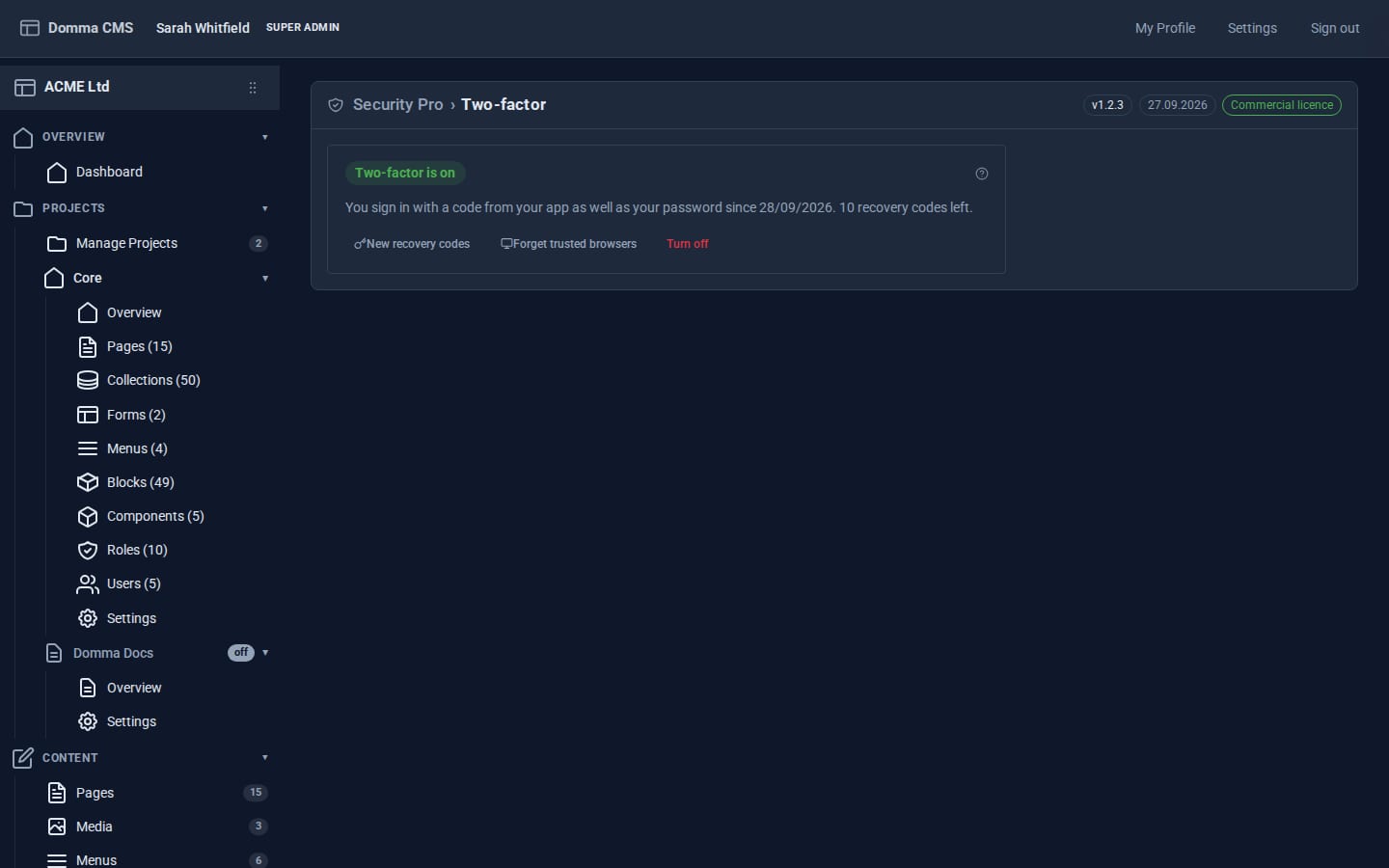
Security Pro adds a Two-factor item to the sidebar for every user, whatever their role.
- Click Two-factor, then Set up two-factor sign-in.
- Scan the QR code with your authenticator app. If you cannot scan it, type in the key shown instead.
- Type the six-digit code the app shows and click Turn on.
Step 2: Save your recovery codes
Next you see your recovery codes. They are shown once. Copy or Download them, keep them somewhere safe away from your phone - a password manager or a printed sheet in a drawer - then click I have saved them.
Each code gets you in once if you lose your phone. Run low? New recovery codes replaces the lot after you confirm with a code from your app.
Step 3: Sign in the new way
Sign out and back in. After your password comes a One more step screen asking for the code from your app (or a recovery code). Tick Trust this browser to skip the code on that browser for 30 days. Forget trusted browsers on your Two-factor page makes every browser ask again - do this if a laptop goes missing.
Step 4: Make it compulsory
Open Security, click the cog for Security settings and find Two-factor sign-in:
- Required for these roles - for example
super-admin, admin - Trust a browser for (days) - 30 by default; 0 means always ask
Save. Anyone in those roles who has not set it up is walked through it - QR code and all - at their next sign-in, and cannot turn it off afterwards.
Step 5: Help someone who lost their phone
The Two-factor tab in Security shows who uses it. If someone loses their phone and their recovery codes, right-click them and choose Reset their two-factor.... If their role requires it, they set it up again at their next sign-in.
Every two-factor event - set up, used a recovery code, reset - is recorded in the Audit tab, and the person is notified when one of their recovery codes is used.
What you built
Two-factor sign-in on your own account, recovery codes put somewhere safe, the rule enforced for every admin and a clear way to help a colleague who loses their phone.
Keep going
- Locking down sign-in - the free protections Security Pro builds on
- Security Pro - firewall, country rules, sessions, audit trail and file checks
Want Security Pro on your site?
Security Pro is a Pro Tool. Tell us about your site and we will set it up with you.