You will do
Check how safe ACME's site is, tune how it handles wrong passwords and scanners, and know exactly what to do if someone - even you - gets locked out.
You need
- An admin account
- Access to the server's command line (for the emergency step only)
Free and on already
The Security Tool ships with Domma CMS and switches itself on. There is nothing to install.
Step 1: Read the health check
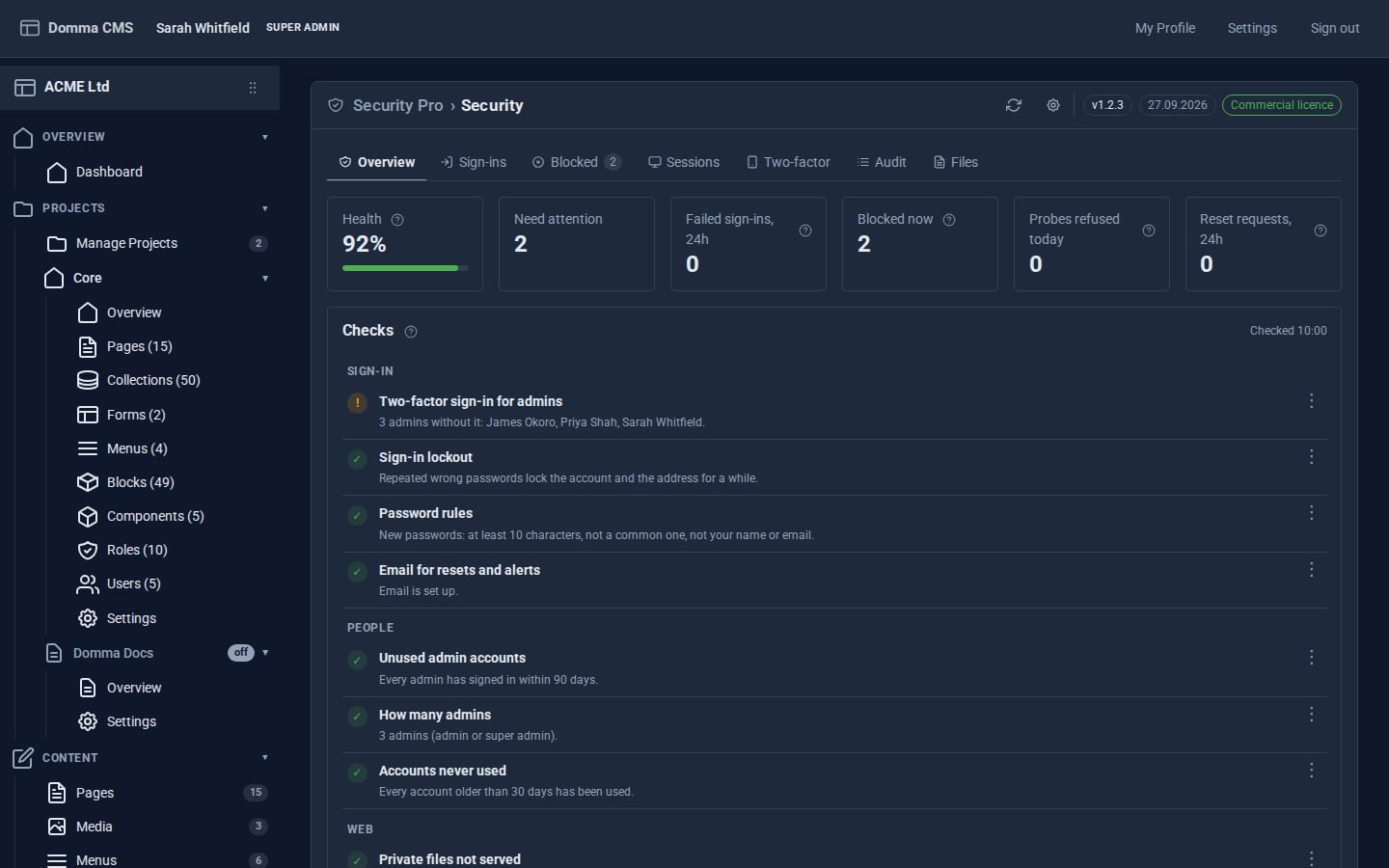
Open Security in the sidebar. The Overview tab shows tiles for failed sign-ins in the last 24 hours, addresses blocked now, probes refused today and password reset requests, and the Health check: what is weak and how to fix it.
Checks are grouped:
- People - admin accounts nobody has used for months, how many admins there are, accounts never used
- Sign-in - lockout, password rules, two-factor, email for resets and alerts
- Server - whether Domma CMS is up to date, production mode, visitor addresses behind a proxy, the listening address
- Web - the HTTPS certificate, security headers, private files not being served
- Plugins - licences
Anything the check cannot confirm shows as information, never as a pass. The Security sidebar badge counts the checks that need attention and turns red only for a critical one.
Step 2: Tune the lockout and password rules
Click the cog in the banner to open Security settings.
- Sign-in lockout - after 5 wrong passwords on one account, or 20 from one address, within 15 minutes, that account or address waits before trying again, and each lock lasts longer than the last. A refusal never reveals whether an account exists, and a correct sign-in clears the count.
- Password rules - applied whenever a password is set or changed: at least 10 characters, not one of the 10,000 most common passwords, and not containing the person's name or email.
The defaults suit most sites. Save when you are happy.
Step 3: Let the scanner guard work
Every site on the internet is probed all day for WordPress logins, .env files, database dumps and the like. The Security Tool answers those requests with a bare "not found" before your site does any work, and an address that probes 5 times in 10 minutes is blocked for an hour. Addresses you have signed in from recently are never blocked automatically.
If your site really does serve a path that looks like a probe - old .php pages, say - add it to This site does serve in the settings.
Step 4: Watch the sign-in log
The Sign-ins tab lists every sign-in and every "Forgot your password?" request. Filter by All, Failed, Succeeded or Resets, choose a period, and click CSV to download it. Right-click a row to see only that address, unlock the account or block the address.
The Blocked tab shows accounts locked after wrong passwords (with Unlock all), addresses blocked for probing, and any you block by hand - a single address or a range such as 10.0.0.0/8.
You are told about lockouts, and about a success after many failures, in Notifications.
Step 5: Know how to get back in
If you lock yourself out, anyone with access to the server can lift it from the site's folder:
node plugins/security/bin/unlock.js --list
node plugins/security/bin/unlock.js --user you@acme.example
node plugins/security/bin/unlock.js --all
The site picks the change up within a few seconds. Forgotten password and no email? npm run users -- reset-password you@acme.example sets a new one from the command line.
What you built
A site that tells you where it is weak, slows down password guessing, turns away scanners before they cost you anything, keeps a record of every sign-in, and has a way back in for when things go wrong.
Keep going
- Two-factor sign-in with Security Pro
- Build a client portal with a confined role
- Security and Security Pro
Try it on your own site
Everything in this tutorial is free. One command gets you a site to follow along on.