Docs and Docs Pro: your documents, from draft to done
Docs puts a proper document editor in your admin. Docs Pro publishes handbooks with a Kindle-style reader, gets agreements signed, reviews with comments and suggested changes, and starts you off with ready-made templates.

Most businesses run on documents: the handbook new starters read, the quote that wins the job, the agreement both sides sign, the price list three people argue over. They usually live in a shared drive somewhere else, with a login of their own. Docs brings them into your Domma CMS admin, and Docs Pro takes them from a draft to something published, signed or agreed.
Docs: documents, shared properly
Docs is a document editor inside the admin. Headings, lists, checklists, tables and pictures, Markdown shortcuts as you type, an outline, find and replace and a focus mode. Documents are private until you share them - with colleagues as Viewers or Editors, or with anyone through a read-only link in your site's own look.
Only one person edits at a time, and everyone else sees who. Every save is kept in the version history, deleted documents wait in Trash, and a finished document can go straight to a draft page, a blog post or an email. Import Markdown, HTML and text; download them again, or print to PDF.
Docs Pro: from draft to done
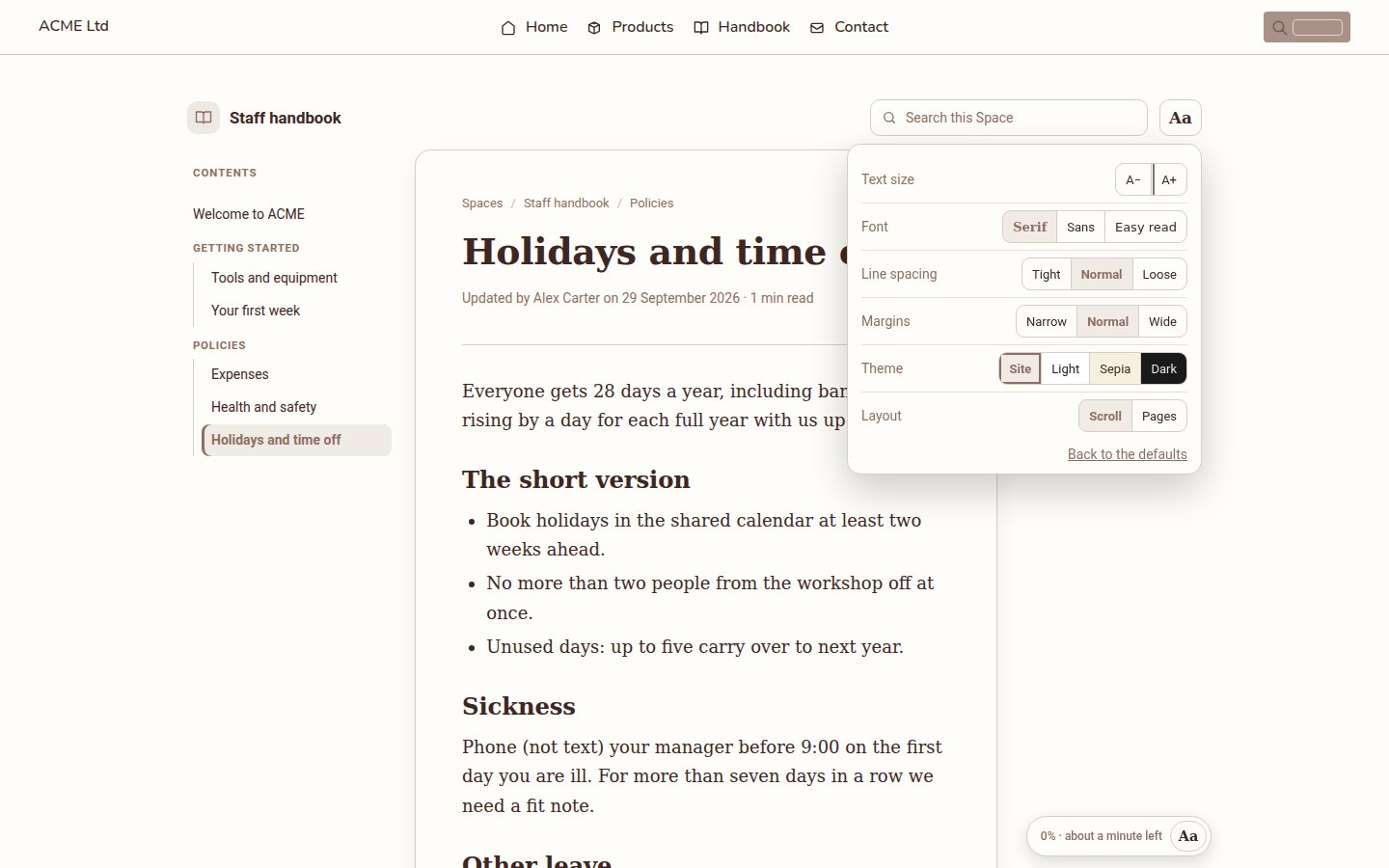
Domma Spaces publish a folder of documents as a section of your site - a staff handbook, a help centre, a set of guides. Readers get a contents sidebar, search, "On this page" and a reader built for long reading: text size, font (including Easy read), spacing, margins, Light, Sepia and Dark, and a Pages layout that turns like an e-reader. It remembers where each reader stopped. Pages are snapshots, so you can keep editing without anyone seeing half-finished changes until you publish again.
Signatures. Send a document for signing and each person gets their own link by email. They read it, agree to sign electronically, then type or draw their signature. When everyone has signed, they are all emailed the signed copy with a certificate page recording who signed, when, and the document's fingerprint. It is a simple electronic signature, right for most agreements, though not for deeds or wills.
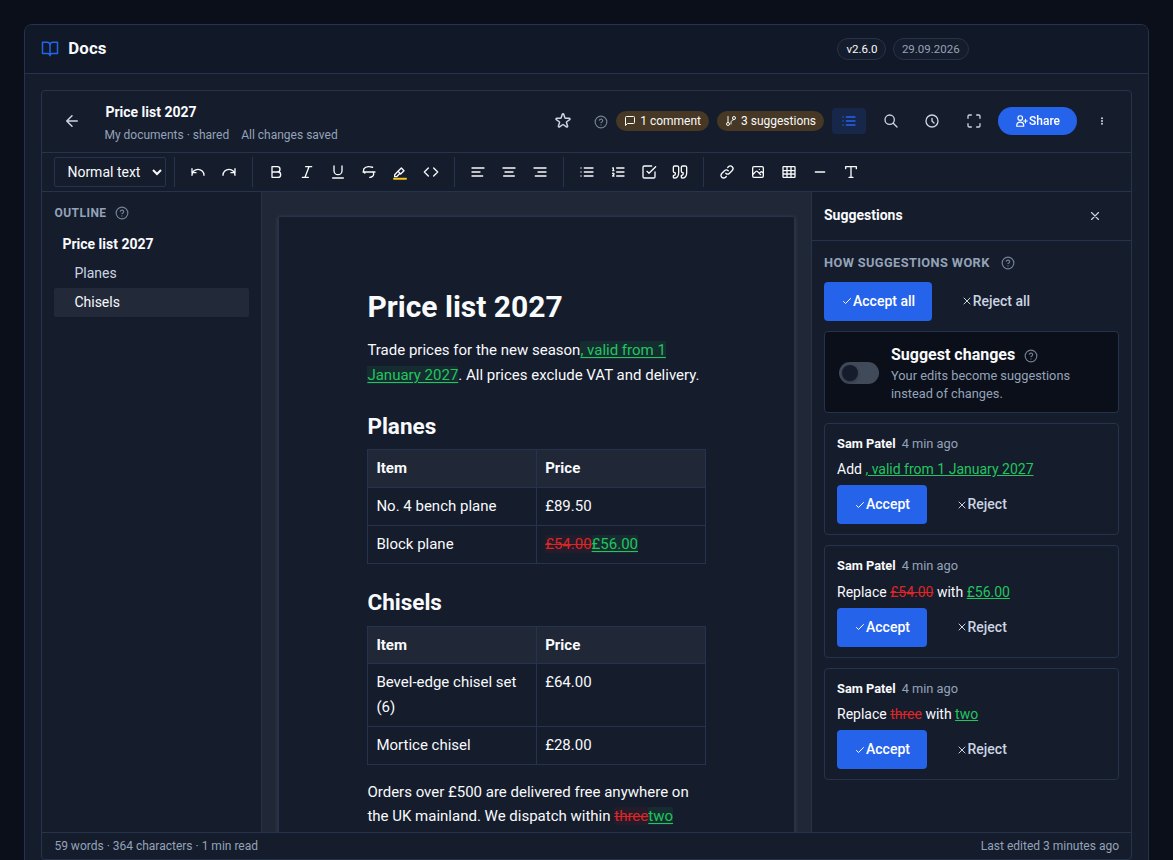
Suggested changes. Share a document with someone as a Suggester, or switch on Suggest changes yourself: typing becomes green underlined suggestions, deleting strikes words through, and an editor accepts or rejects each one. Comments sit alongside, on a few words or the whole document, with replies and Resolve. Neither ever reaches your public pages until it is accepted.
Ready-made templates and merge fields. Twelve templates to start from - letter, quote, proposal, service agreement, meeting notes, policy, handbook page, job description and more. Most have fields such as {{contact.name}} and {{date}}, so choosing one asks for the details at once: pick a customer from your Contacts and the letter or quote fills itself in.
And the rest.
- Word files - import .docx documents and download any document as Word.
- Cloud copies - keep copies of your documents in Google Drive, OneDrive, Dropbox or any S3 bucket, on every save or nightly.
- Protected links - give a public link an expiry date or a password.
Try it
- Docs and Docs Pro have their own pages, with screens from our ACME Ltd demo site.
- Follow a tutorial: build a staff handbook with Domma Spaces, quotes and letters from templates, get a contract signed or review a document with comments and suggestions.
- Take the Docs Pro tour.
Docs and Docs Pro are Pro Tools. Tell us about your site and we will set them up with you.
Keep reading

Domma Reactive 1.3: array helpers in your bindings
Domma Reactive 1.3.0 adds thirteen built-in array helpers to binding expressions, with observable item reads tracked so counts, filters and totals update as the data changes.
Tools that switch off safely
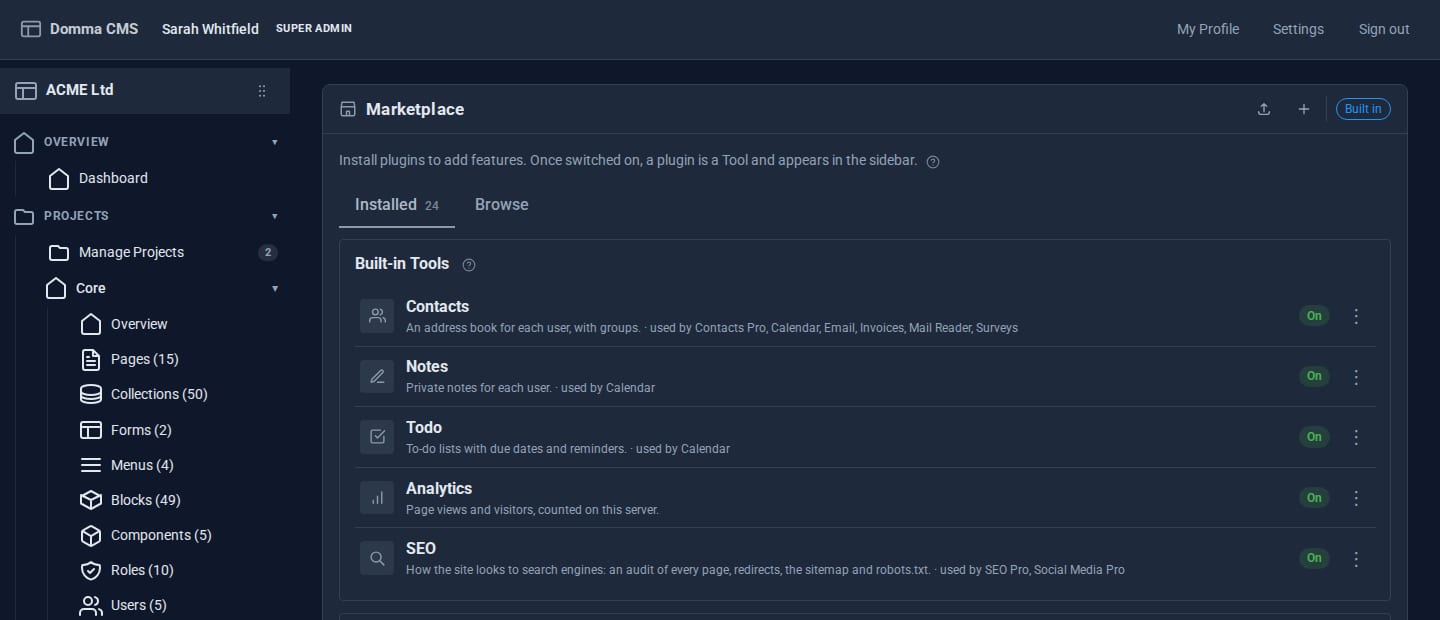
Since 0.88, the built-in Tools can be switched off - but only through a plan that shows you everything the switch would affect, and never in a way that breaks something else.

Backup Pro: you always see what Domma did
Scheduled, encrypted backups of every site, restores that are tested in a sealed-off copy - and a record the site owner can read of every backup and every restore, including the ones we started.